
Eymistaken's HUD
A modular PvP HUD for Fabric — seven modules, a drag & drop editor, and a plugin API.
Visit the Official Website & User Guide
Module showcases, the Keystrokes Designer guide and the full API documentation live there.
Eymistaken's HUD gives you the competitive overlay of a modded client without the modded client. Everything is drawn client-side, placed exactly where you want it, and stored in a single config file you can share as a string of text.

Why this mod
| Everything is movable | Drag any module anywhere with a live in-game editor. Snapping, an optional grid, align & distribute tools, and per-element nudging. |
| Everything is themeable | Per-module color, scale, rainbow mode, background color + opacity, custom label text, text outline and five bundled fonts. |
| Nothing is bloated | Zero runtime GUI library dependencies. Client-side only — no server install, no mixin into gameplay logic. |
| Layouts are portable | Save named presets, auto-remember a layout per server, or export the whole HUD as a share code and paste it to a friend. |
| Extensible | A public API lets other mods register their own HUD modules, with their own settings tabs, and subscribe to combat events. |
Modules
CPS
Left and right click counters with a configurable separator and free-text prefixes/suffixes, so you can render
12 | 4, CPS: 12, or anything else you like.

Keystrokes
A fully custom keystroke display, not a fixed WASD block. The bundled Keystrokes Designer lets you draw your own layout: add any key or mouse button, resize it, drag its label independently, recolor individual keys, and pick a press animation (none, squish, ripple, or both). Any key can carry its own CPS counter.


Combo
A hit-streak counter with a heatmap: the number changes color as your streak climbs, and shakes at the top tier. Three difficulty curves decide where those tiers sit.
| Heatmap mode | Tier 1 | Tier 2 | Tier 3 (shake) |
|---|---|---|---|
| Easy | 3 hits | 5 hits | 7 hits |
| Medium (default) | 5 hits | 8 hits | 12 hits |
| Hard | 10 hits | 40 hits | 60 hits |
It also understands how you fight. Classic mode counts every swing; Modern mode respects the 1.9+ attack cooldown so spam clicking doesn't inflate your streak. You choose whether the combo breaks on any damage taken, whether it survives switching targets, and how long it lingers before timing out.

Reach
Shows the exact distance of your last hit, with decimals. Optionally filters to players only, and can stay on screen with a custom "no hit yet" label instead of disappearing.

Armor
Your armor, main hand and off hand as item icons with durability bars. Lay them out vertically or horizontally, draw them on hotbar-style slot backgrounds, print exact durability numbers, and flash a slot red when it takes damage. Every slot is an independently placeable element — you can scatter them around the screen individually if you want.

FPS & Ping
Lightweight performance readouts with custom label text, color, scale and background — for when you want the numbers without opening F3.

The layout editor
Press Right Shift in game to open the editor. Everything you see is the real HUD, live.
- Drag any module — or any individual armor slot — to place it exactly.
- Right-click an element for a context menu of its own settings, straight from the HUD.
- Multi-select two or more elements to unlock align left/center/right, align top/middle/bottom, and distribute horizontally/vertically.
- Snapping to other modules' edges, plus an optional pixel grid (4/8/16/32).
- Prevent Overlap keeps two modules from ever covering the same pixels.
- Right-click empty space for the global menu: settings, presets, server configs, share codes and a full layout reset.


The settings screen
A purpose-built settings screen — one page per module, split into tabs, with a search box that finds any setting by name, per-row descriptions and defaults, and a one-click reset on anything you've changed. It holds a single readable size at any Minecraft GUI Scale, and you can nudge that baseline from 50% to 200%.
Open it from ModMenu, or from the editor's global menu.


Presets, server configs & share codes
| Feature | What it does |
|---|---|
| Named presets | Save the entire HUD under a name and switch between them instantly. Stored as plain JSON in simplecps_presets/. |
| Per-server configs | Turn it on and your HUD is simply remembered per server. Join a server you've configured and its layout loads silently; edits there are saved back to it. Single-player shares one config. |
| Share codes | Export your whole HUD — or just a keystrokes layout — as an EYMHUD1-… string. Copy it, send it, paste it. Imports are fully validated before anything is applied, and a timestamped backup is taken first. |

Appearance
Five bundled fonts on top of vanilla — Inter, Rubik, JetBrains Mono, Bebas Neue and the enchanting-table font — applied only to HUD elements and this mod's own screens, never to chat or vanilla menus. Add a thin black outline instead of the vanilla drop shadow, and set color, scale, background and opacity per module.
(Still improving fonts. They are not perfect yet. Sorry.)
Installation
- Install Fabric Loader (0.18.4 or newer).
- Install Fabric API.
- Download Eymistaken's HUD and drop the
.jarinto your.minecraft/modsfolder.
ModMenu is optional and only adds a button to open the settings screen. There is no Cloth Config requirement — the settings screen is built into the mod.
Requirements: Minecraft 26.1–26.2 · Java 25 · Fabric · client-side only.
⚠ Updating from a version older than v1.0.8?
Delete your old
simplecps.jsonconfig file first to avoid layout issues and to pick up the newer defaults.
For developers
Third-party mods can register their own HUD modules through the eymistaken_hud entrypoint. A registered module gets a settings page, a slot in the drag & drop editor, and its state carried inside presets, server configs and share codes — for free.
public class MyPlugin implements EymistakenHudPlugin {
    @Override
    public void registerHudModules(HudModuleManager manager) {
        manager.registerModule(new MyHudModule());
    }

    @Override
    public void registerEvents(EymistakenHudEventBus bus) {
        bus.subscribe(ComboStreakEvent.class, event -> {
            if (event.level() >= 2) playHypeSound();
        });
    }
}
Modules can declare their own settings tabs, expose sliders/toggles/color pickers/text fields to the editor's right-click menu, and split into independently placeable sub-elements. Full documentation is on the official website.

A third-party module registered through the API — it gets its own settings page, its own tabs, and a slot in the editor, listed under PLUGINS in the sidebar.
Links
Licensed MIT.
All Versions
+ Add Version| Name | Game version | Platforms | Published | Downloads | Actions |
|---|---|---|---|---|---|
| 5d ago | 1 | ||||
| 1mo ago | 1 | ||||
| 1mo ago | 1 | ||||
| 2mo ago | 1 | ||||
| 2mo ago | 1 | ||||
| 2mo ago | 1 | ||||
| 3mo ago | 1 | ||||
| 3mo ago | 1 | ||||
| 3mo ago | 1 | ||||
| 4mo ago | 1 | ||||
| 4mo ago | 1 | ||||
| 5mo ago | 1 | ||||
| 5mo ago | 1 | ||||
| 6mo ago | 1 | ||||
| 6mo ago | 1 | ||||
| 6mo ago | 1 | ||||
| 7mo ago | 1 | ||||
| 8mo ago | 1 | ||||
| 8mo ago | 1 | ||||
| 8mo ago | 1 | ||||
| 8mo ago | 1 | ||||
| 8mo ago | 1 | ||||
| 8mo ago | 1 | ||||
| 8mo ago | 1 | ||||
| 8mo ago | 1 | ||||
| 9mo ago | 1 | ||||
| 9mo ago | 1 | ||||
| 9mo ago | 1 | ||||
| 9mo ago | 1 | ||||
| 9mo ago | 1 | ||||
| 9mo ago | 1 | ||||
| 9mo ago | 1 | ||||
| 9mo ago | 1 | ||||
| 9mo ago | 1 | ||||
| 9mo ago | 1 |


Full documentation for everything below: **https://eymistaken.github.io/Eymistaken-s-HUD-Website/**
## Place the armor HUD with nothing equipped
The armor HUD draws only what you wear and hold, so with an empty inventory it showed nothing in the HUD editor and there was nothing to grab and move. The editor now fills those slots with ghosts: a dark, sunken slot holding a gray copy of the diamond piece that belongs there, and the empty off-hand silhouette for the off hand. They are made from the textures of the active resource pack, so a pack that redraws diamond armor gets ghosts in its own style.
As soon as anything is worn or held, the editor shows only the real items, because that is what the HUD will look like in game. A slot you have detached from the group is placed on its own, so it keeps its ghost whenever it is empty. Outside the editor nothing changes and empty slots are not drawn.
> 
## Armor reacts to hits and warns before it breaks
The red flash on a damaged item is gone. In its place are four hit effects that play when a piece loses durability. **Hit Shake** knocks the item and lets it settle, **Hit Sparks** throws red sparks out of it, **Warning Corners** blinks red brackets around its slot twice, and **Chip Damage** keeps the durability the hit took on the bar in white for a moment before it drains away, so even a small loss is visible.
Below a threshold, an item now warns you that it is wearing out. **Warning Badge** puts a small red "!" on its corner that hops now and then, **Tremble** makes it grow and shiver, **Heartbeat** makes it beat, and **Red Pulse** breathes a red glow behind it. Each grows stronger and faster as the item nears breaking. Every motion is timed rather than random, so the same hit always plays the same way.
> 
All of them live on the new **EFFECTS** tab of the Armor HUD page in the settings screen, next to **STYLE**. Each has its own slider from 0 to 200%, where 0 turns it off, and several can run at once. **Low Durability At %** sets where the warnings start, 25% by default. **Hit Shake** and **Warning Badge** are on out of the box and the rest start at 0. While you are on that page the **PREVIEW** card takes a pretend hit every two seconds, so each slider can be judged as you move it.
The old **Damage Flash** toggle moved to the same tab as **Damage Effects** and now switches all four hit effects. Your existing setting carries over: if you had turned the flash off, the hit effects start off too.
> 
## Edit text in the HUD editor
Text settings opened from a module's right-click menu in the HUD editor, such as Reach's **No Hit Text**, now use the same field as the rest of the mod. The cursor moves with the arrow keys or with a click between letters, text can be selected by dragging, with **Shift** or with **Ctrl+A**, and **Ctrl+C**, **Ctrl+X** and **Ctrl+V** work. Before, fixing a letter near the start meant deleting everything after it.
## Fixes
Hits on armor are now noticed the first time an undamaged piece takes one; the old flash skipped that hit. Switching to a more worn item, such as a second sword on the hotbar, no longer counts as a hit.
In the HUD editor's menu, moving the cursor diagonally toward an open **Configs** or **Server Configs** list no longer closes it when the cursor crosses the rows beneath.
designer and share codes work exactly as they did in 1.2.2; only the game version changed.
Minecraft 26.1 and 26.2 are no longer supported, and 1.2.2 remains available for them.
26.3 numbers keys and mouse buttons differently than earlier versions did, so an existing
simplecps.json is translated the first time you launch: your keystrokes layout, its keybindings and its per-key settings are kept as they were. Share codes written by 1.2.2 or
earlier import the same way, their key numbers translated on the way in. Codes exported
from 1.2.3 are refused by older builds rather than applied to the wrong keys.
Full documentation lives on the website:
Full documentation for everything below: **https://eymistaken.github.io/Eymistaken-s-HUD-Website/**
## Hits count when the server confirms them
The counter used to count attack attempts rather than hits. A click into a target's invulnerability frames, or into a raised shield, still added to the combo, so rapid clicking inflated it. An attack now only records a pending swing, and the hit is counted when the server's damage event for that target arrives. The server sends that event only for a fresh hit that actually landed. On servers that do not report who dealt the damage, such as older versions reached through a protocol translator, the swing you just sent is taken as the cause.
The previous behavior remains available: with **Hit Detection** set to **CLIENT**, every attack you send is counted as before. **Combat Mode** applies under both settings.
## What breaks a combo
- Reset on Any Damage** combined two decisions in one switch, and the damage check behind it could miss a hit that landed before the previous one had worn off. Its rule of breaking the combo only when your target hit back never worked either, because the attacker it compared against was the target itself. The same setting, now labeled **Break on Any Damage**, decides only what ends a combo: any damage you take, or only damage from someone you are fighting, meaning an entity you have landed a counted hit on within the timeout. Thorns damage never breaks a combo, since it is the echo of your own hit.
Whether a lost combo ends or drains is now a separate setting. With **Decay** on, a broken or timed-out combo loses one hit per second instead of ending, and landing a hit stops the drain. A configuration that had Reset on Any Damage turned off keeps the decay it had. A target moving more than 20 blocks away now ends the combo in every mode, and with **Continue On Target Switch** off, killing the target within one second of your last hit ends it as well.
## The combo landed on you
The counter now also tracks the hits a single attacker lands on you in a row and shows them as a negative row, such as **-4 Combo**. A hit from a different attacker starts the count over, and the count ends when you land a counted hit on that attacker, when the attacker dies, or when the timeout passes without another hit. Melee and projectile hits count; thorns does not. With **Only Players** off, mobs count as attackers too.
While your own combo is alive, the negative row sits beneath it behind a short divider; otherwise it takes your combo's place. The two can appear together only when Decay is on or Break on Any Damage is off, because otherwise the first hit you take ends your combo. As its count grows, the row darkens from yellow through orange and red toward black and shakes harder, and each hit you take jolts it. Its edge warms to a dim red as the text darkens, so a near-black number stays readable against a dark scene. The module reserves room for the row whenever it can appear, so modules stacked on the same edge do not move each time you are hit.
## How hits land
Every counted hit now punches the number up and lets it settle back with a slight overshoot. Larger moments add a brief freeze in the manner of fighting-game hitstop: reaching a new heatmap tier, beating your best, killing the target and losing a combo each stop the counter for a fraction of a second, longer for bigger combos and never longer than 160 milliseconds. The punch, the shake of both rows, the color of the negative row and the divider all freeze together and resume where they stopped. Past the top tier your count shakes, and each further hit freezes that shake in place.
A combo that ends on a timeout, on a kill or by distance now stays on screen at its final value for just over a second, dimming before it goes, instead of disappearing at once. A broken combo that had reached the first tier holds frozen for a moment before the negative row takes its place. **Min Display** sets the smallest count worth showing, for both rows.
## Tuning the motion
The strength of that motion is set on a new **ANIMATION** tab, with three sliders running from 0 to 200 percent of the default. **Impact** scales the punch and the length of each freeze, **Shake** scales the shaking of both rows, and **Hit Jolt** scales the jolt of each hit taken. Setting one to 0 turns that motion off without touching the others. Separate controls were chosen over a single intensity setting so that, for example, the freeze can stay while the shake is switched off.
The preview on the Combo settings page now plays a short scripted fight on a loop, so these values, the line and the colors can be judged without landing a hit.
## Your best combo
Your best combo is now recorded and kept between sessions in
simplecps_stats.json, next to the main config file. It is kept out of the config deliberately: presets, server configs and share codes never carry it, and no settings reset clears it. When a combo beats the record and has reached the second heatmap tier, it lands harder, turns gold for a moment and shows a small **BEST** tag beside the count, once per combo. The tier requirement keeps a short combo that tops a low record from being announced. **Reset Best**, on the Behavior tab, forgets the record after asking for confirmation, because the settings screen's **Cancel** cannot restore something that is not part of the config.## A line under the count
- Line** draws a thin line beneath your count. **TIMEOUT** shrinks with the time left before the combo ends and refills on each counted hit. **HITS** shows your last eight counted hits as segments: gray for a normal hit, white for a sprint hit and gold for a critical hit, which is confirmed by the server's critical hit packet rather than guessed on the client. **BOTH** stacks the two, and **OFF** removes the line. When the negative row appears beneath your combo, the line turns into the divider between them.
The module reserves the line's space in the layout, so modules stacked on the same edge do not move as it appears and disappears. Because the line is on by default, those modules move down by two pixels once after updating.
## Color, format and style
- Heatmap Mode** and **Rainbow** were two switches, and the heatmap silently overrode the rainbow when both were on. They are replaced by a single **Color Mode** with the values **STATIC**, **RAINBOW** and **HEATMAP**. **Heatmap Difficulty** gains **CUSTOM**, which uses three tiers of your own; the tiers always stay in increasing order, so moving one pushes the others out of its way. The heatmap's mid and top colors can now be chosen, and their defaults reproduce the previous red to dark red. The tiers also decide where your count starts to shake, from which tier a new best is announced, and how quickly the negative row darkens.
- Suffix Text** is replaced by **Format**. In it,
{combo}stands for the count, negative on the row for a combo landed on you, and{best}for your best combo. A format without{combo}receives the count in front, so editing the format cannot remove the number.
- Style** adds a **BIG** layout that draws the count at twice its size with the rest of the format beneath it, on both rows. Only the large number punches and shakes; the text beneath it holds still so that it remains readable. Separate badge and minimal styles were not added, since a background with the line and a format such as
x{combo}already produce those looks.
The module's right-click menu in the HUD editor now offers **Color Mode**, **Style** and **Format** alongside **Enable Combo**, **Always Show** and **Text Color**.
Existing configurations carry over. A heatmap or rainbow setting becomes the matching Color Mode, a suffix becomes a format such as
{combo} Hits, and a configuration that had Reset on Any Damage turned off keeps its decay.## Fixes
The combo's background box now lines up with the module's bounds; it previously sat two pixels up and to the left of them.
Confirmation dialogs in the settings screen no longer switch to another dialog's title and text while they fade out.
A keystrokes code exported from the designer used to carry only the geometry — where each
key sits and how big it is — so importing one painted the sender's layout with whatever
design you already had. It now carries the whole look: the design, the animations and
their direction, the release trail, the board, the scale and every color, including
anything a single key overrides on its own. Its position on your screen is deliberately
left out.
- Ctrl+Z** after an import also failed instead of undoing it, which mattered because a
Full-config codes are untouched. Keystrokes codes made before this release still import,
carrying no look of their own; codes exported from 1.2.1 onward are rejected by earlier
builds, so anyone still on 1.2.0 needs to update before your layout will reach them.
Full documentation lives on the website:
from, an animation system you assemble yourself from separate parts, and a gallery to
browse both. How a key looks at rest and what it does when you press it are two separate
choices, so any design works with any animation.
Full documentation lives on the website: **https://eymistaken.github.io/Eymistaken-s-HUD-Website/**
## Eleven looks for your keystrokes
- Baseline** is what you already had. **Frame** hollows the key out and leaves a thin
drops the box entirely and puts a rail under the letter. **Soft Block** rounds the
corners and catches a highlight along the top edge. **Segment** slices the key into
horizontal bands like an equalizer, and **Neon** sets an almost-black core inside a
three-layer halo.
- Wedge** and **Hex** are arrangements as much as shapes: Wedge places your movement keys
one moves your keys into its slots and keeps their keybinds, labels and colors with
them. Leaving it again puts the stock grid back. **Pixel Bevel** and **Slot** take the
other direction, with double borders, gold corner pixels and a recessed board.
- Timeline** is not a key style at all — it lays out lanes and scrolls your press history
Open the Keystrokes Designer and press **DESIGN** in the toolbar to browse them. Every
card in the gallery presses and releases itself while you look, because a design that
only sits still tells you nothing about what happens when you actually use it. Picking
one brings its palette across too — Neon needs its dark core, the pixel styles need their
slate and gold — and everything stays editable afterwards.
> 
## Animations you put together yourself
Pressing a key can move it, paint it, or both, and you choose each independently.
A key can **Squish**, **Kick**, **Sink** or **Nudge** — and more than one at a time. Sink
and Nudge add together into a diagonal shift; Kick takes over from Squish when both are
on. Separately, a key can be painted by a **Ripple**, a **Sweep**, a **Cascade** through
its slices, a **Hold Ring** that travels the border while you keep the key down, an
- Edge Run** that circles it, or a plain **Glow**. Several fills can run at once and they
result.
One direction setting drives every fill you have on: **Right**, **Left**, **Up**,
- Down**, **Center Out**, **Edges In**, **Clockwise** or **Counter-Clockwise**. Each fill
running clockwise coexist under a single control. There is also a **Release Trail**,
which sends a fading outline outward at the moment you let a key go — it shows the rhythm
of fast clicking rather than the press itself.
Animations live under **ANIM** in the designer toolbar.
## Different settings for one key
Any single key can break from the rest. Select it on the canvas and the inspector's
design section lets you give that key its own design, motion, fill or direction while
everything else follows the module. A per-key animation replaces the module's set rather
than adding to it, so this is also how you take one key out of an effect its neighbors
have.
> 
## Smaller changes
An ornamented board can now be drawn behind the whole key cluster. It is its own toggle
rather than part of a particular style, so it sits behind any of the eleven designs. Undo
in the designer now covers the module's appearance as well as the key positions, so
stepping back from a design you tried does not leave its colors behind. **RESET LAYOUT**
resets the whole module rather than only the positions.
The design can also be switched from the in-game HUD editor and the settings screen if
you do not need the full designer. Animations stay in the designer, since several can be
active at once and a single-value setting cannot show that.
Existing configurations carry over. Your current keys, colors and effect settings are
read and translated into the new system on first launch.
Full documentation for everything below: **https://eymistaken.github.io/Eymistaken-s-HUD-Website/**
## See a module while you set it up
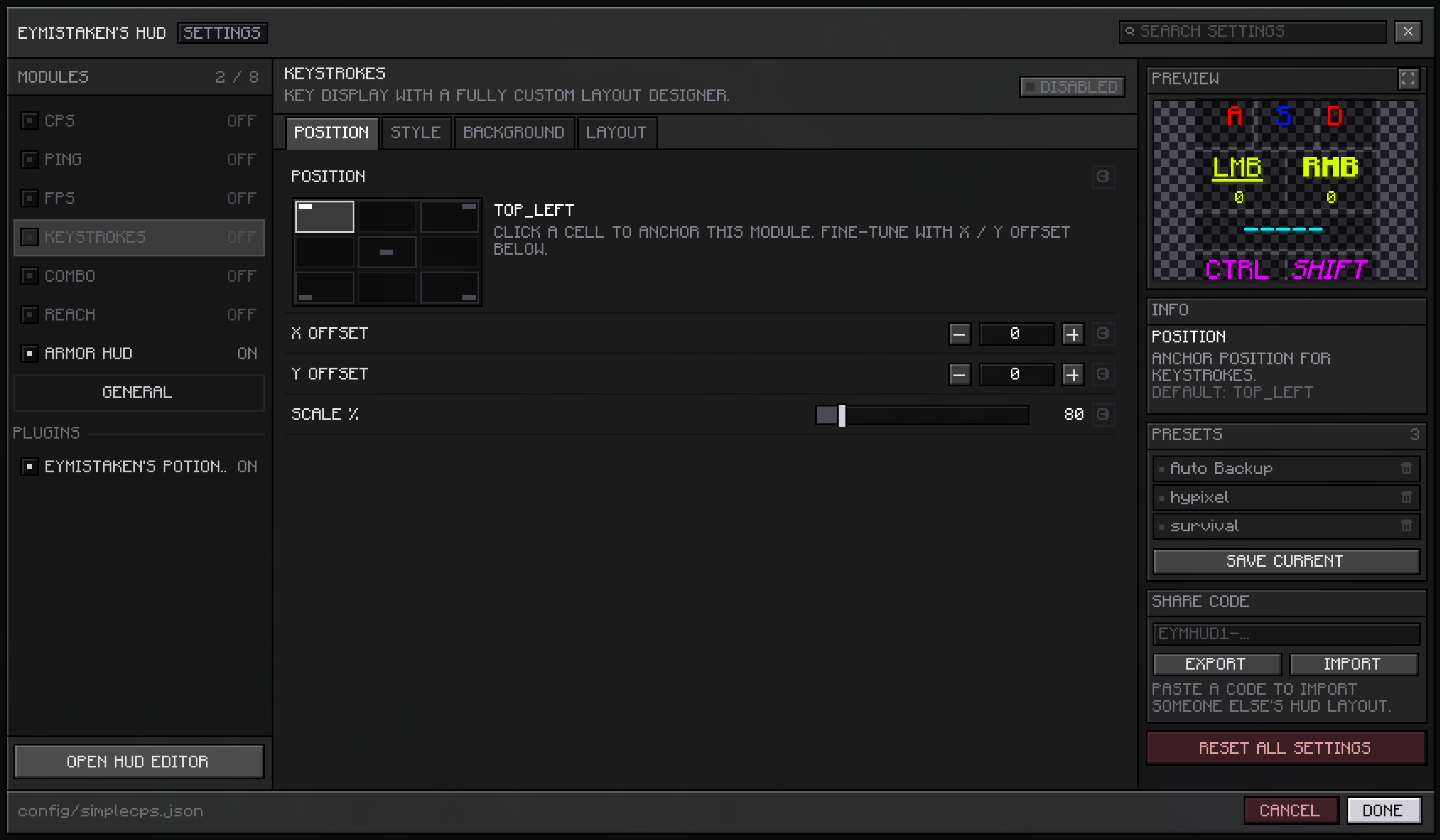
Open any module's page and the right-hand column leads with a **PREVIEW** card showing that module as it will really appear in game, at its real size. Change a colour, a scale, a background opacity or the text around a counter, and the card updates as you type.
The checkerboard behind it is deliberate. HUD modules are drawn over gameplay, so a flat dark panel would flatter every light colour and hide a low background opacity completely.
Modules that need data the game is not currently producing fall back to stand-in values — click rates, a ping reading, a combo streak, a set of armour and a weapon — so the card still shows something from the main menu with no world loaded.
> 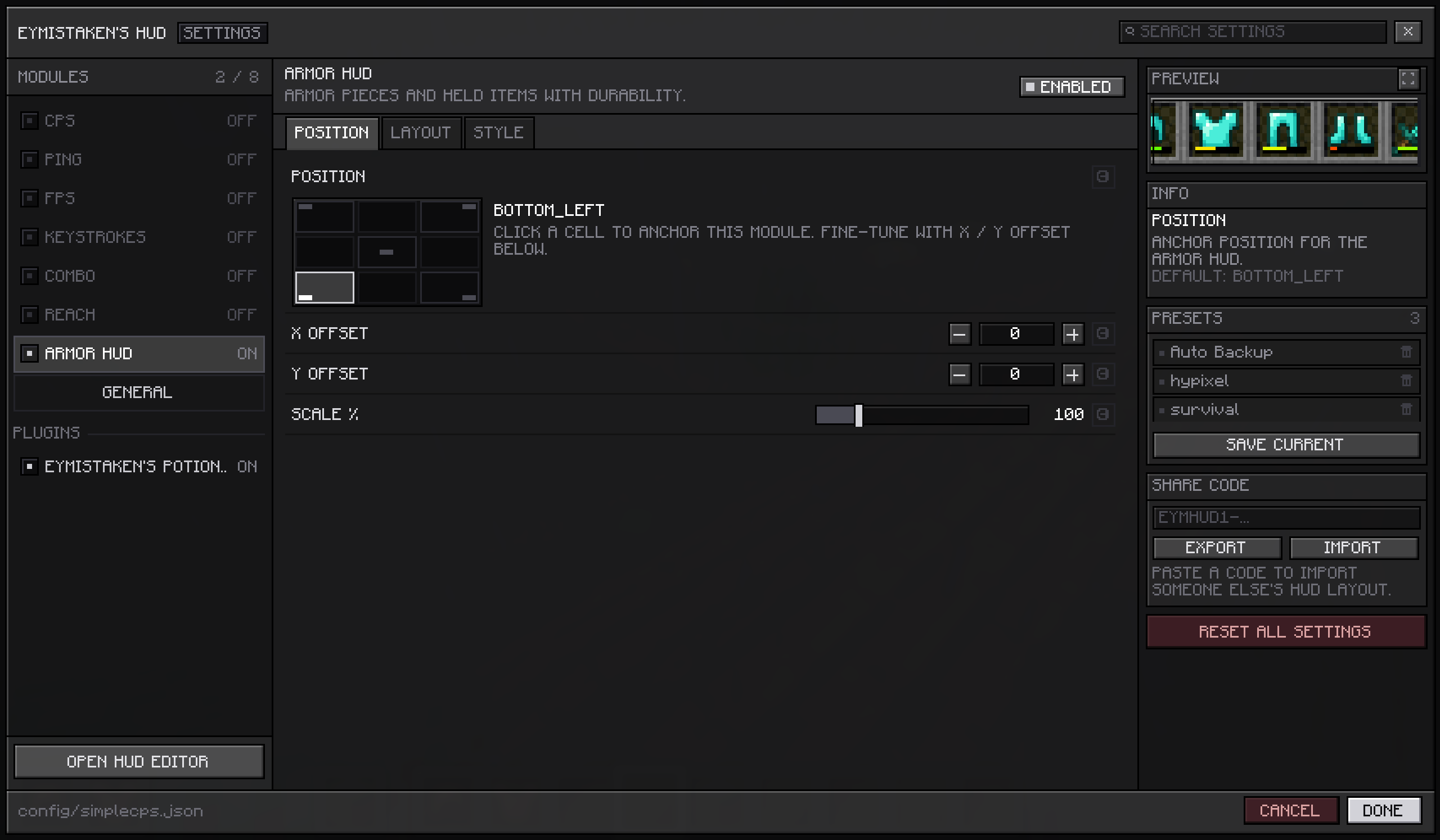
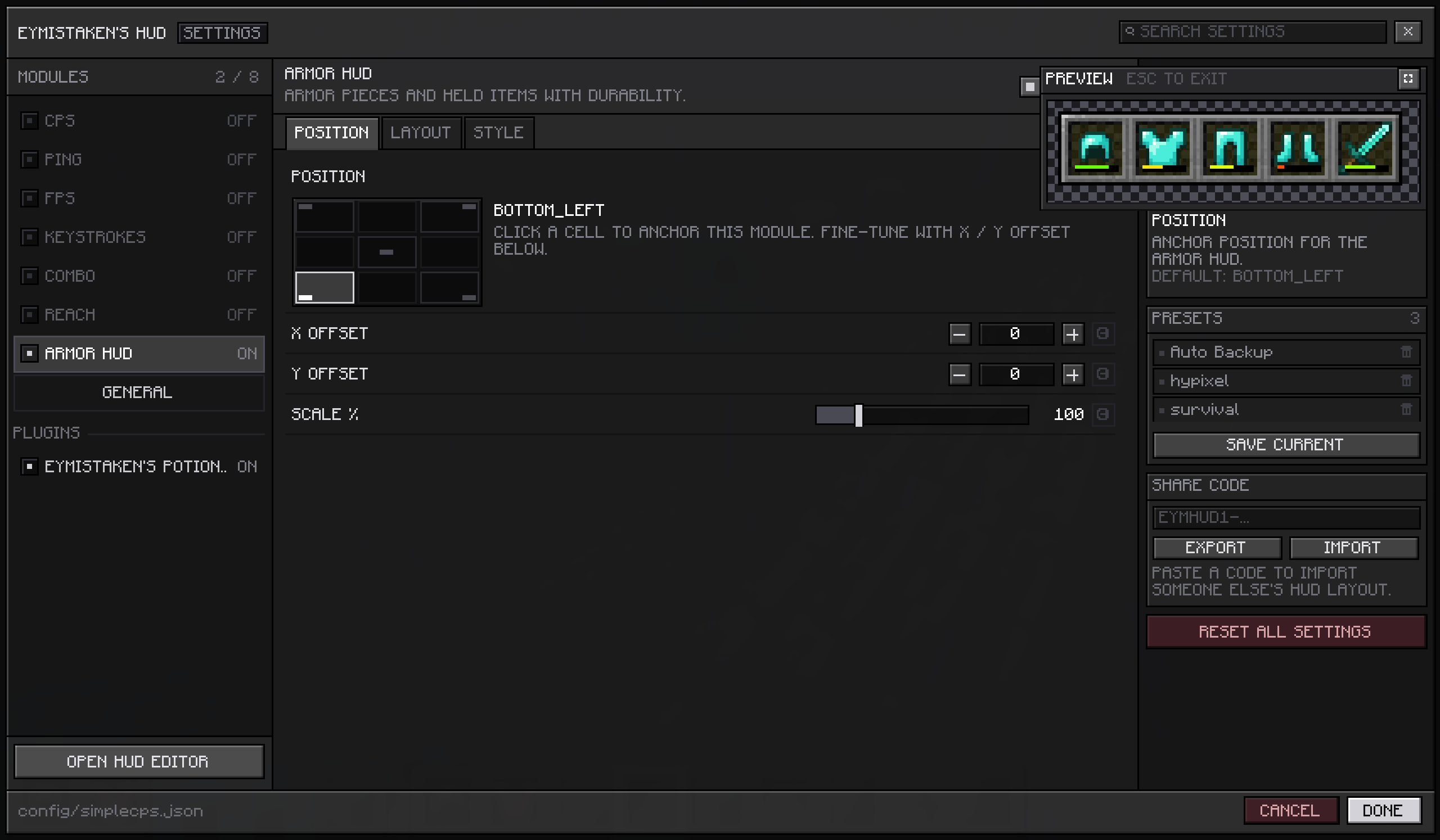
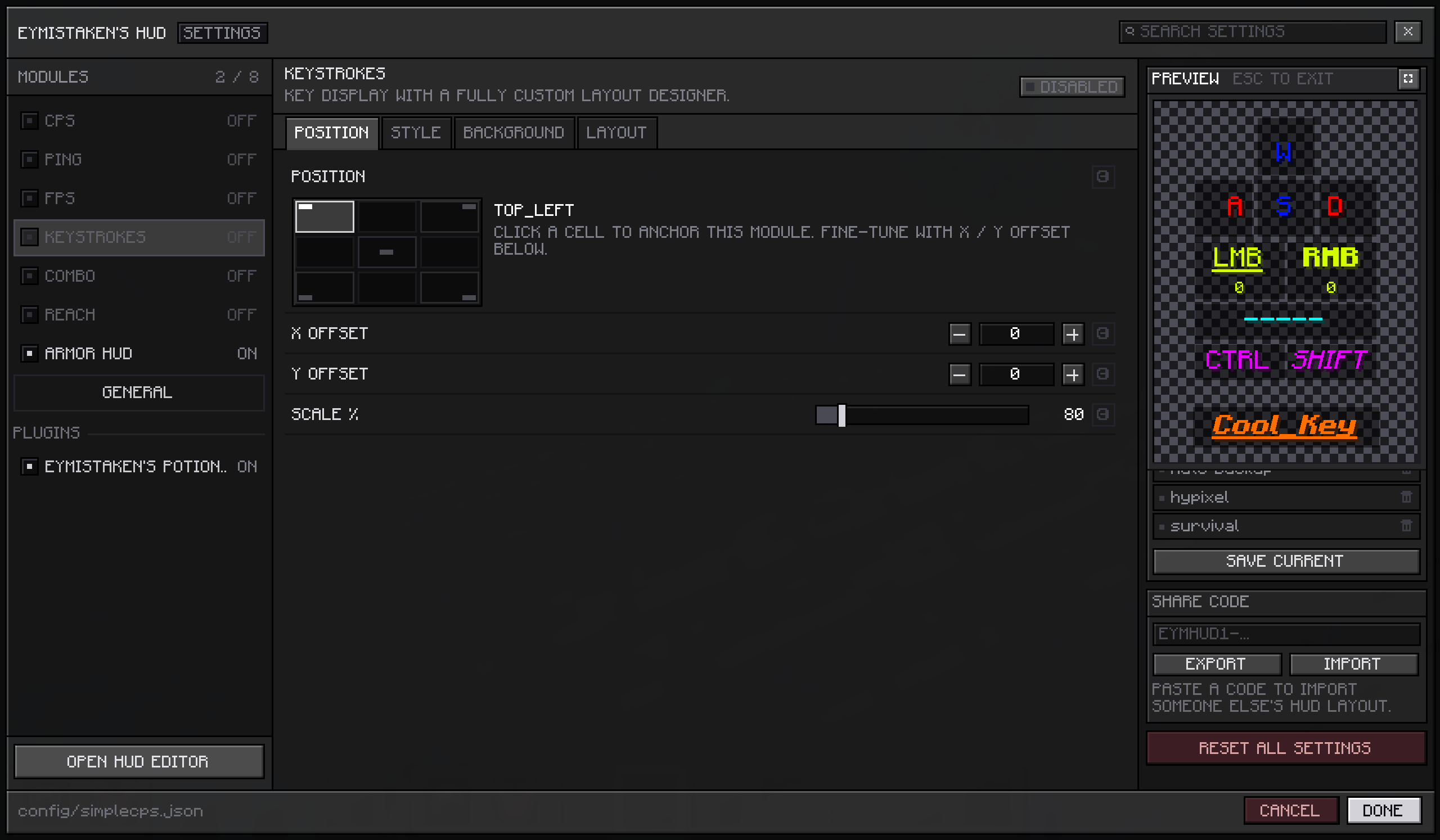
The card grows taller to fit its module but never wider, so a large module is cropped at the edges instead of spilling into the settings beside it. When that gets in the way, the button in the card's header expands the preview over the rest of the screen, far enough to hold the module with a little room around it — which is also how you judge how much space it will actually take. Escape or the same button closes it again, and nothing else on the page moves while it is open.
> 
## Fixes
The **Configs** and **Server Configs** lists in the HUD Editor no longer close while you are pointing at them. When neither side of the menu had room, the list opened on top of the menu itself, and moving onto it counted as hovering the row underneath.
## For developers
Modules can supply their own preview. Return a
HudPreview from getPreview() and the card draws whatever you give it; return nothing and no card appears at all. HudPreview.ofModule(this) covers the common case of the module drawing itself, with isPreviewing() as the hook for substituting stand-in data — it is set while your module is measured as well as drawn, so the card is sized for what it shows.Backwards compatible: existing plugins keep working unchanged and simply show no preview.
Full API documentation, with code examples: **https://eymistaken.github.io/Eymistaken-s-HUD-Website/api-guide.html**
their own. Nothing changes for players: a HUD built from the same modules looks and
behaves exactly as it did in 1.1.1-7.
Full reference: <https://eymistaken.github.io/Eymistaken-s-HUD-Website/api-guide.html>
## Tabs on a plugin module's settings page
HudModule.getSettingsTabs() returns a list of SettingsTab(id, name, settings), andeach entry becomes a tab on that module's page alongside the POSITION tab the screen
builds from the module's anchor, offsets and scale. It defaults to an empty list, so a
module that does not override it keeps the flat SETTINGS tab it has today, down to the
ids the screen uses to track per-row state.
Declaring tabs does not discard the two existing setting lists.
getContextMenuSettings()leads the first tab, which preserves the rule that everything on the editor's right-click
menu also appears on the page, and
getSettingsScreenSettings() becomes a trailingSETTINGS tab.
Tabs with nothing to show are dropped rather than drawn empty, and duplicate tab ids —
including a module claiming the reserved
pos or settings — are renumbered so no tabbecomes unselectable. A module that throws from
getSettingsTabs() or returns nullsfalls back to the flat layout instead of taking the settings screen down with it.
Opening a module's settings from the HUD editor previously looked for a tab literally
named
settings, which a module with its own tabs need not have; it now lands on thefirst non-placement tab. Built-in module pages are unaffected.
[Full documentation for every feature below lives on the website:](https://eymistaken.github.io/Eymistaken-s-HUD-Website/)
## A settings screen built for the HUD
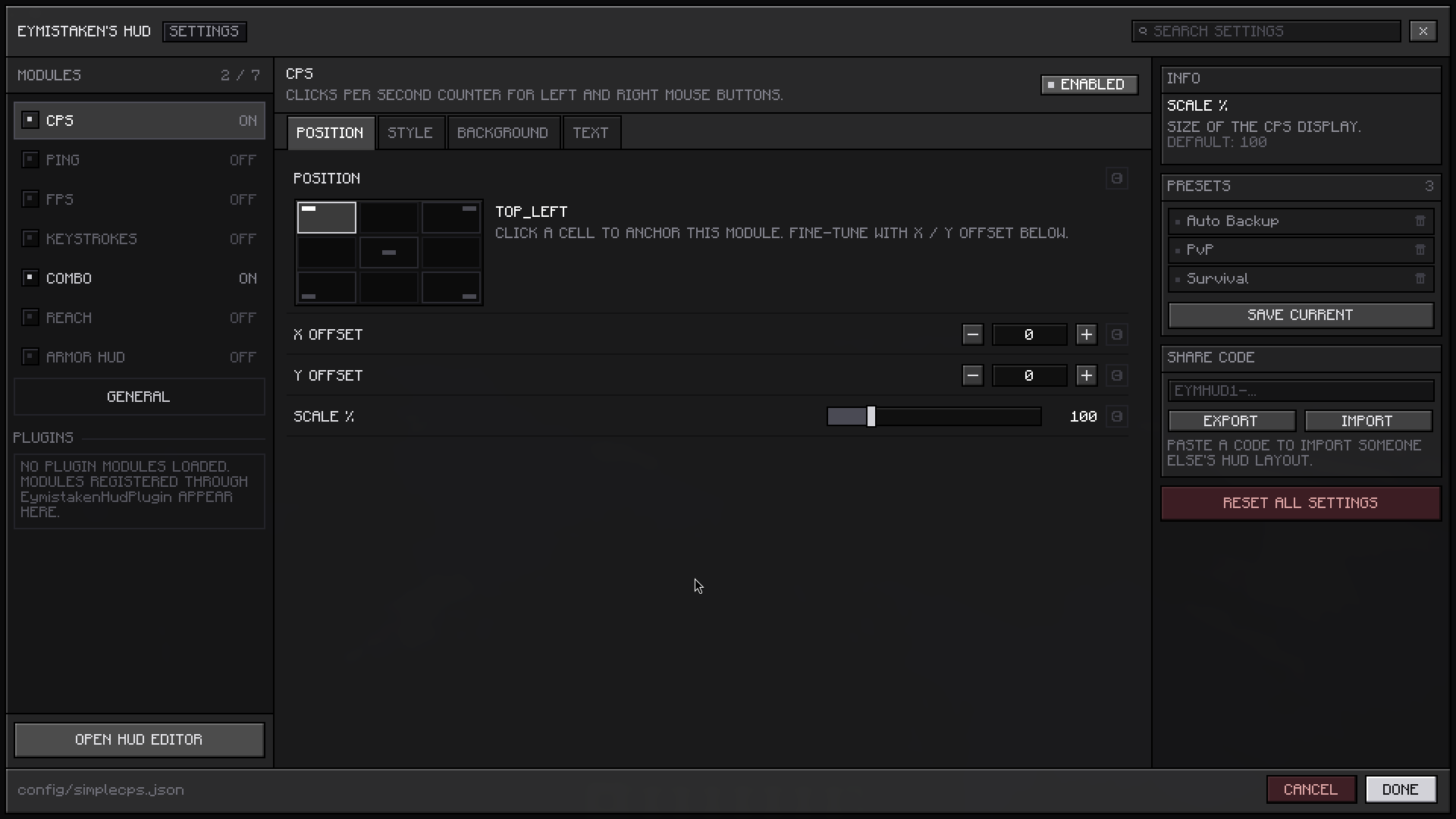
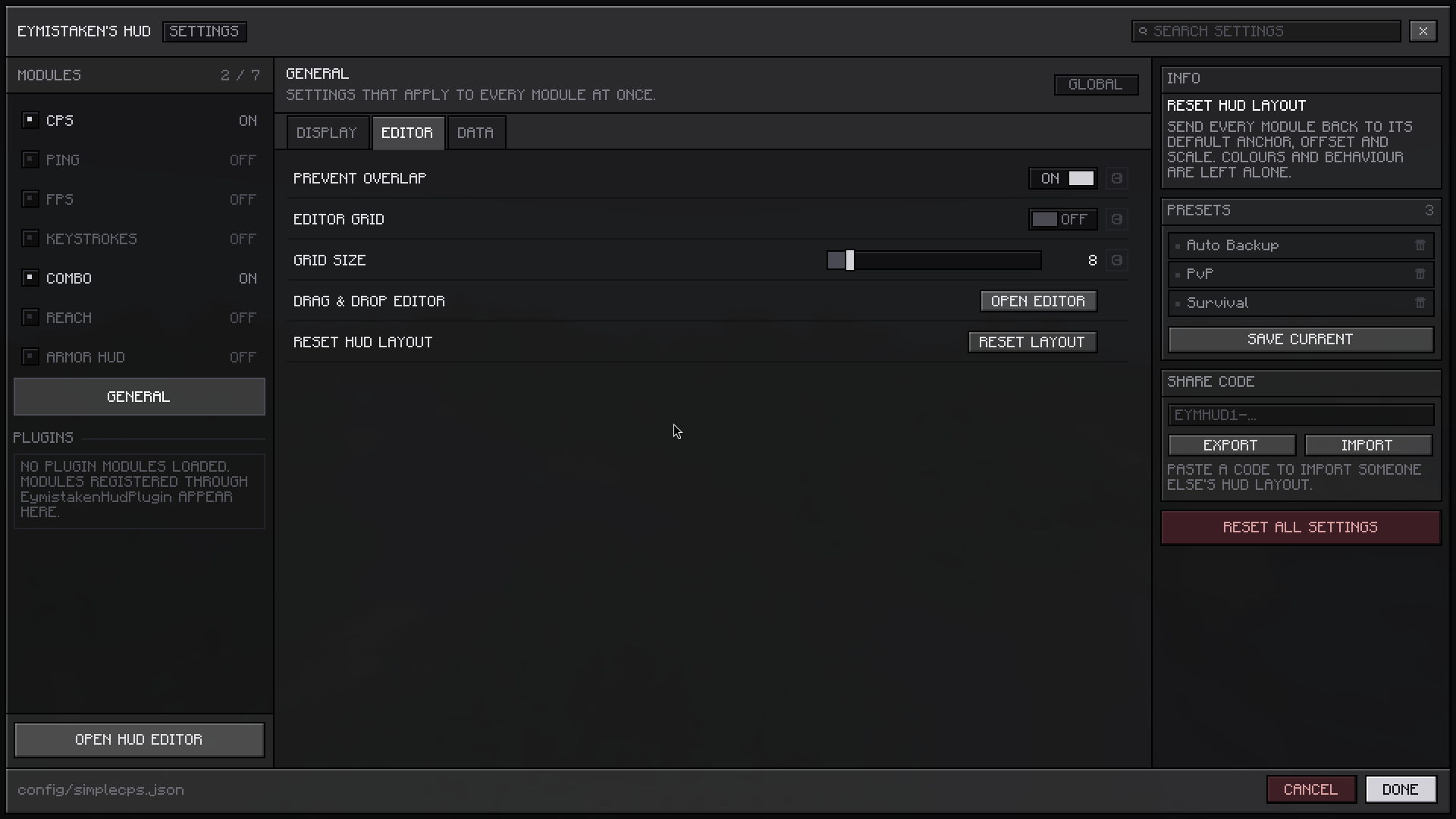
Open it from Mod Menu, or from inside the HUD Editor. Modules are listed down the left with their on/off state, each one's settings are grouped into tabs, and a search box across the top filters every setting in the mod at once.
Anchoring a module is now a three-by-three grid you click rather than a dropdown you cycle. Sliders drag, number fields accept typed values, and hovering any setting shows what it does and what its default is in the panel on the right. Every setting has a reset arrow that appears once you have changed it.
Presets, share codes and **Reset All Settings** sit in that same right-hand panel, so building a layout and saving it no longer means moving between two different screens.
Changes are saved as you make them; the **Cancel** button discards everything done since the screen was opened, after a confirmation. The screen stays the same physical size at any Minecraft GUI Scale, and **General → Display → Menu Scale** adjusts that size if you want it larger or smaller.
> 
## Picking colours
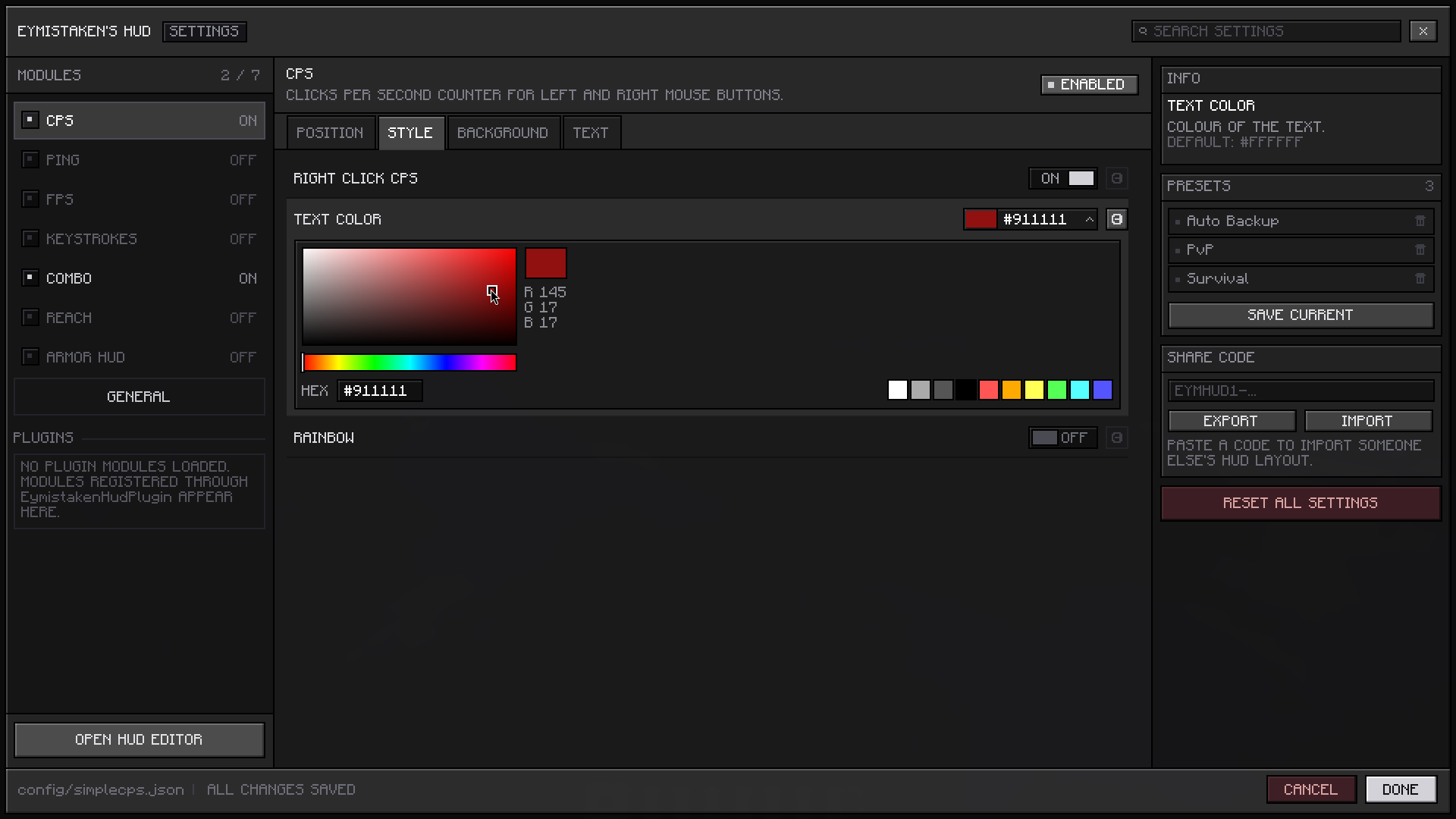
Colour settings open a picker directly in the row: a saturation and brightness square with a hue bar under it, a live preview with the red, green and blue values beside it, and the ten quick-pick colours below.
The hex field is click-to-copy — left-click copies the code to your clipboard and confirms it, right-click puts the cursor in the field so you can type or paste one.
> 
## Reaching settings from the editor
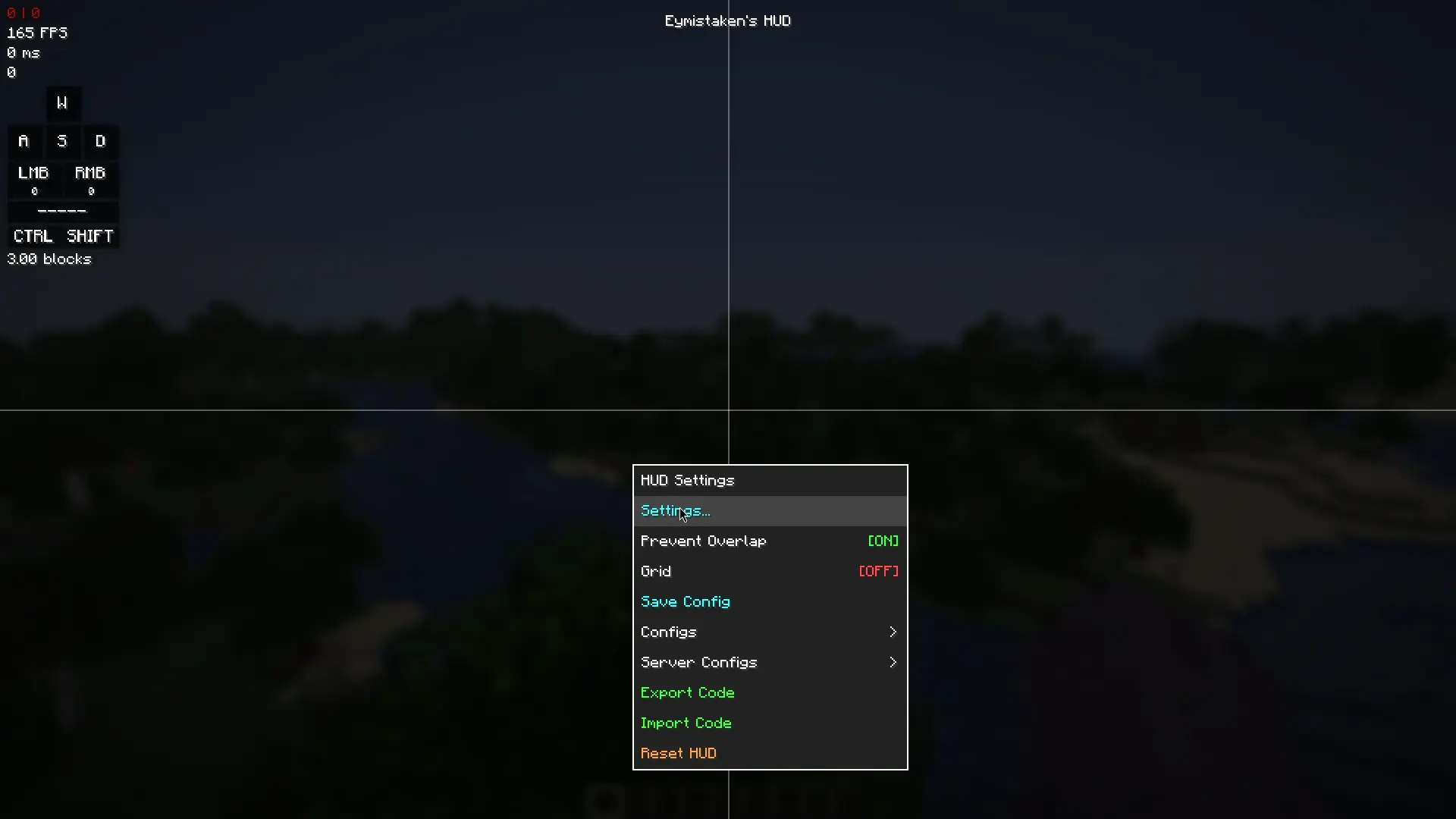
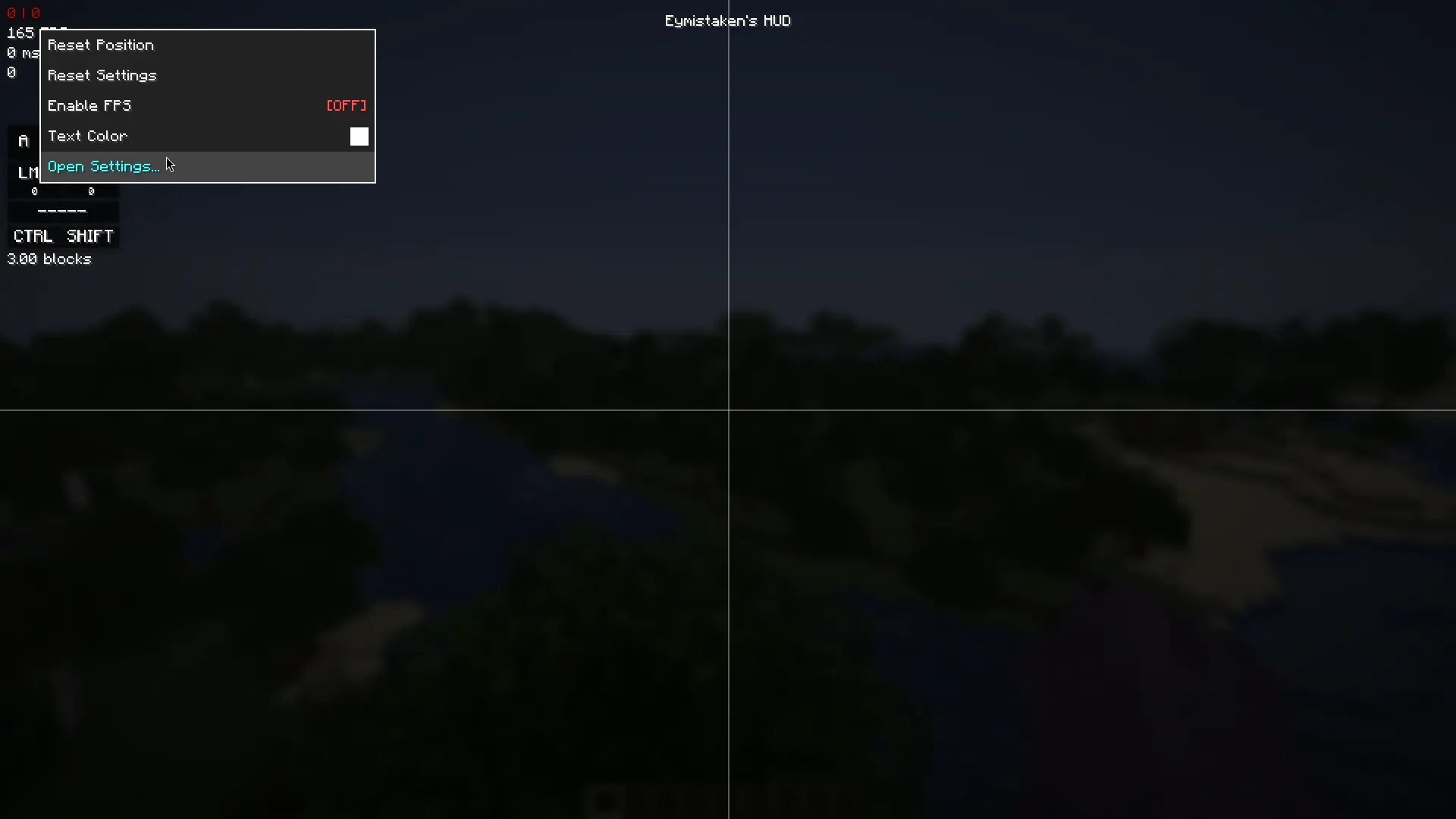
Right-clicking a module in the HUD Editor now offers **Open Settings** at the bottom of its menu, which goes straight to that module's page. Right-clicking empty space has a **Settings** entry that opens the screen itself.
## Settings that were not reachable before
- Prevent Overlap** and a **Reset HUD Layout** action are now in General → Editor alongside the grid options, rather than only in the editor's right-click menu. **Key Effect** for Keystrokes, which chooses between the squish and ripple press animations, has moved out of the Keystrokes Designer. Combo gained **Continue On Target Switch**, which decides whether your combo survives when you start hitting something else.
## Fixes
Resetting a setting now restores the value the mod actually ships with. The old screen listed a handful of defaults that did not match the real ones — CPS and Ping in particular would reset to the wrong anchor and offset.
## For developers
Modules can now separate the settings they show in the editor's right-click menu from the ones they show on their settings screen page.
getContextMenuSettings() is unchanged and still drives the right-click menu, but everything it returns is now also listed on your module's own page in the settings screen. That page is generated for you: it appears in the sidebar under **Plugins**, and its position tab is built from the editor setters your module already implements. Anything that belongs in the full screen and nowhere else goes in the new getSettingsScreenSettings(), which defaults to an empty list — existing plugins keep working with no changes.[Full API documentation, including the merge rules and what the generated page can and cannot do for you ](https://eymistaken.github.io/Eymistaken-s-HUD-Website/)
[**Full documentation for every feature below lives on the website**](https://eymistaken.github.io/Eymistaken-s-HUD-Website/)
## Share your setup
Your entire HUD — every module's position, size, colour and setting — can now be packed into one line of text and copied to your clipboard. Paste it into Discord, a forum post, or a message to a friend, and they get your exact layout back with a single click.
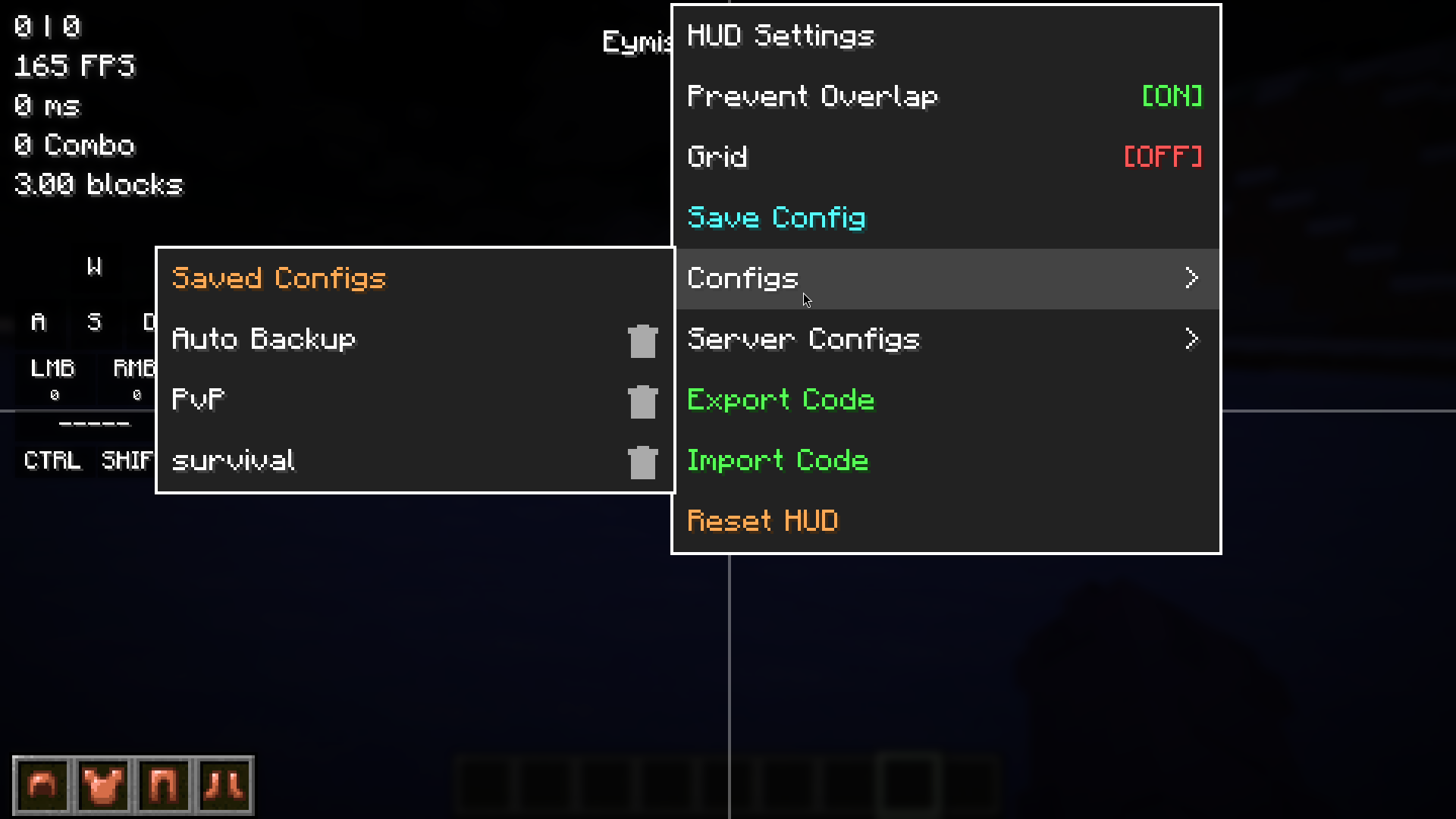
Right-click empty space in the HUD Editor for **Export Code** and **Import Code**. The Keystrokes Designer has its own **Export Layout** and **Import Layout** if you only want to share your key layout without the rest of your HUD.
Importing never loses what you had: your current setup is saved as a backup config first, so a layout you did not end up liking is one click away from being undone. Codes made with a different version of the mod still work, and a code from someone running an addon module you do not have imports cleanly.
You can also keep as many named setups as you like. **Save Config** takes a snapshot, and the **Configs** list lets you load, rename or delete them at any time.
> 
## A different HUD for every server
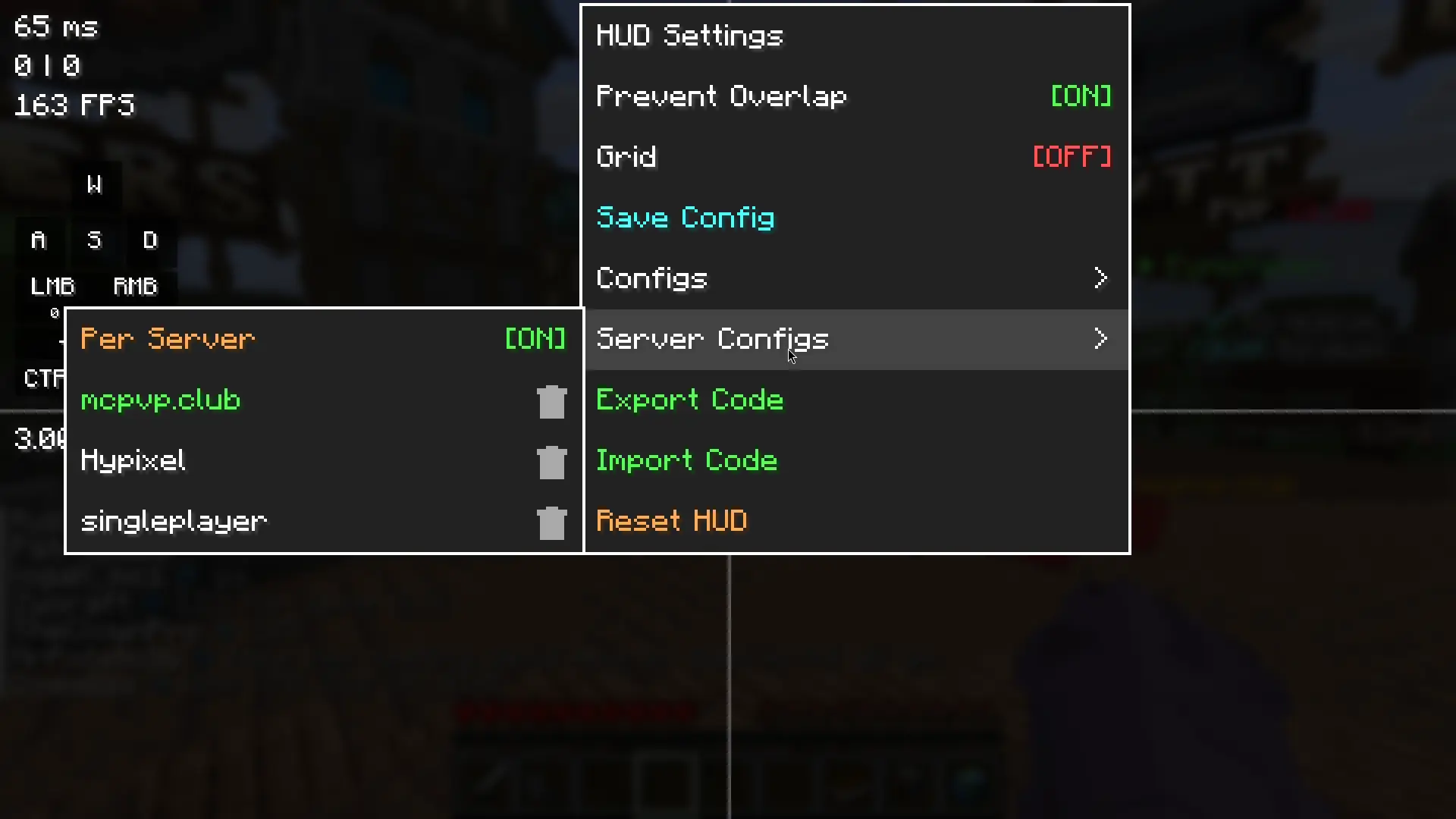
Switch this on and your HUD quietly follows the server you are playing on. Build a compact layout for one server, a full one for another, and each comes back on its own the next time you join. Single-player worlds share one profile.
There is nothing to press and nothing to remember. Whatever your HUD looks like on a server is simply kept for it. If you want to reuse a layout somewhere else, the **Server Configs** list lets you pick any server's setup and apply it where you are — useful for carrying your PvP layout onto a new server.
The server you are currently on is highlighted in the list, and you can give any of them a friendlier name than its raw address.
> 
## Real editing tools
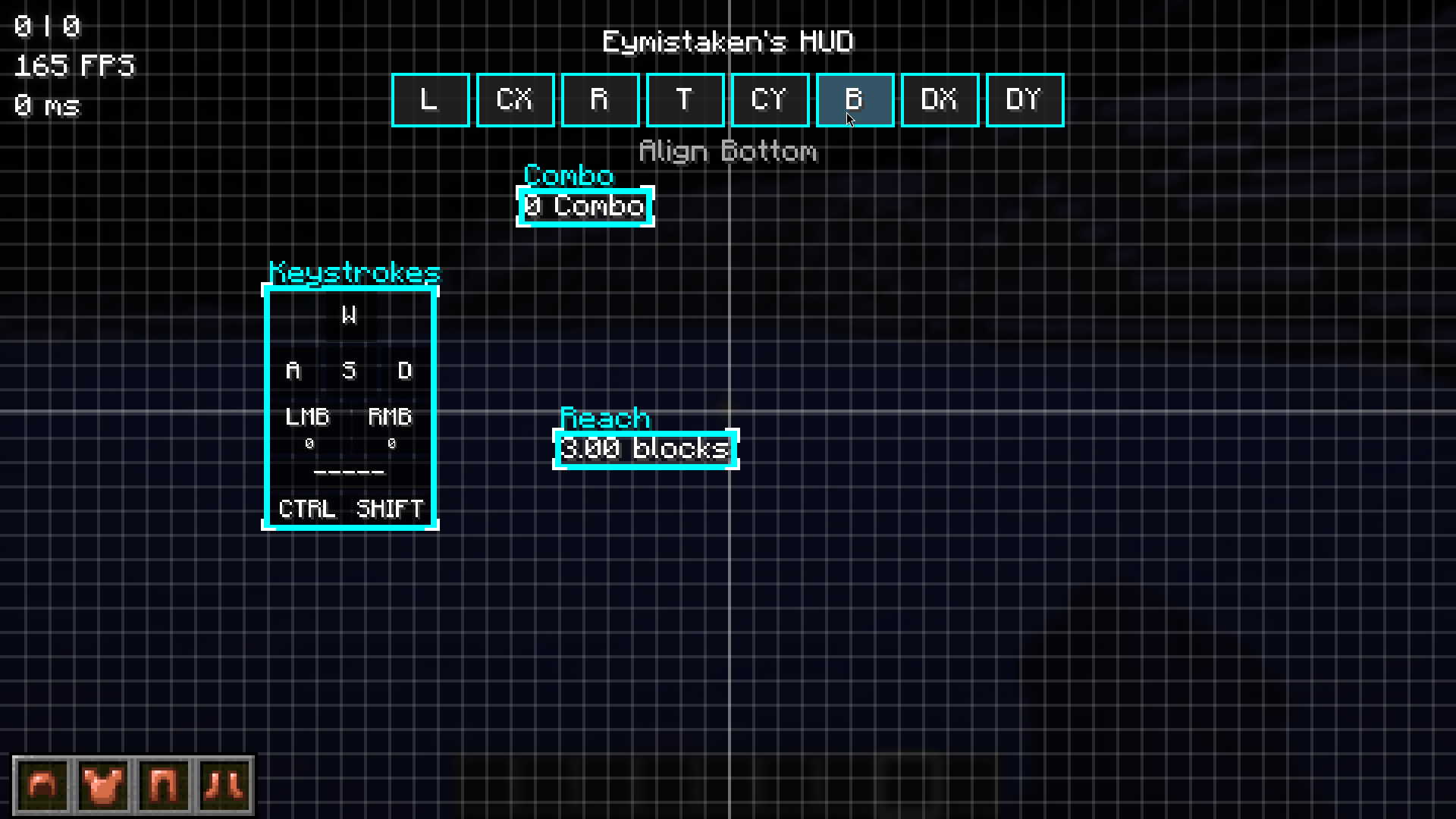
The HUD Editor grew up. Drag a box across empty space to select several modules at once, then line them up properly:
- Align** the selection to its left, right, top or bottom edge, or match their horizontal or vertical centres
- Distribute** three or more modules so the gaps between them are even
There is also an optional grid you can snap to, with a spacing you choose, and arrow keys nudge a selection one pixel at a time when you need to be exact. Holding Shift while dragging turns snapping off entirely for free placement.
Snapping itself feels completely different now. Modules glide into position instead of jumping, while dragging stays perfectly one-to-one with your cursor — the motion only kicks in for the part you did not do yourself. Modules fade in and out as they appear and disappear, and the editor menus animate open and closed.
> 
## Fonts and text style
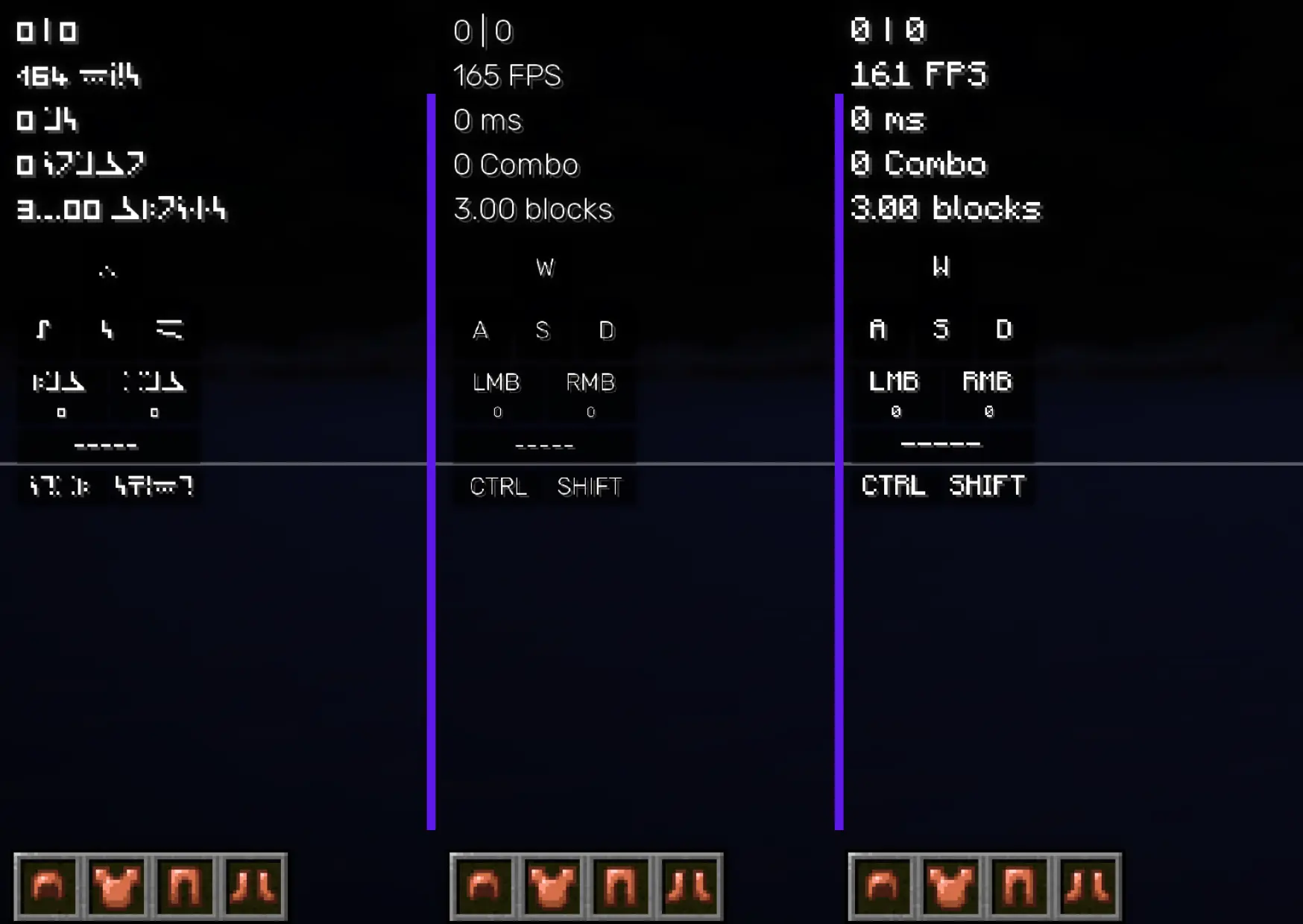
Five fonts now ship with the mod alongside Minecraft's own: Inter, Rubik, JetBrains Mono, Bebas Neue, and Enchanting Table. JetBrains Mono is worth a look if you dislike your CPS counter shifting width as the numbers change.
There is also a text outline mode that draws a thin black outline on every side of your HUD text instead of the usual drop shadow, which reads far better against snow, sand and other bright terrain.
Your font choice applies to the HUD and the editor screens only. Chat, inventories and every other Minecraft menu are left alone.
> 
## Module updates
Ping and Armor HUD can now be resized like every other module, either with the scroll wheel in the editor or from the settings menu. Armor scales cleanly at any size, slot textures and durability numbers included.
## Fixes and stability
Importing a shared setup is now all-or-nothing: if something is wrong with the code, nothing changes at all rather than leaving you half-way. Configs written by a different version of the mod no longer cause problems, and a corrupted or empty config file falls back to defaults instead of stopping the game from starting.
Menus opened near the edge of the screen now stay fully on screen. Resizing a module with the scroll wheel is saved properly, and settings edited in one screen no longer get lost when a config is loaded in another.
## For developers
The plugin API gained two significant additions.
- Module settings can now travel.** Implement
saveState()andloadState()on your module and your settings are carried through saved configs, share codes and server configs automatically — the same as the built-in modules. A player who does not have your addon can pass a config along without destroying your settings, and they light up as soon as your mod is installed.
- There is now an event bus.** Subscribe from your plugin entrypoint to react to things happening inside the HUD. The first event,
ComboStreakEvent, fires when a player's combo reaches a higher tier.
Both are backwards compatible — existing plugins keep working without changes.
[**Full API documentation, including code examples**](https://eymistaken.github.io/Eymistaken-s-HUD-Website/api-guide.html)
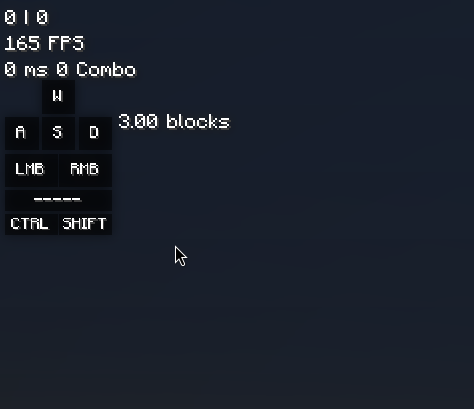
The elements on the HUD now relocates themselves automatically. This should be a huge upgrade for the people who struggles while trying to locate the elements on the HUD Editor Screen.
The core experience is the same. The mod is useable with both Vulkan and OpenGL.
And there is no change with API.
# Fixed:
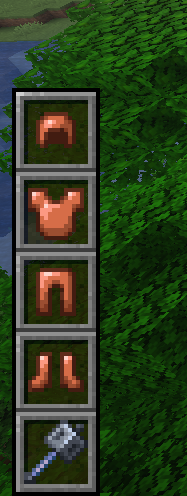
The issue of unsightly lines appearing on the right side of the Armor HUD when in vertical mode has been resolved.
# Armor HUD is much more flexible now
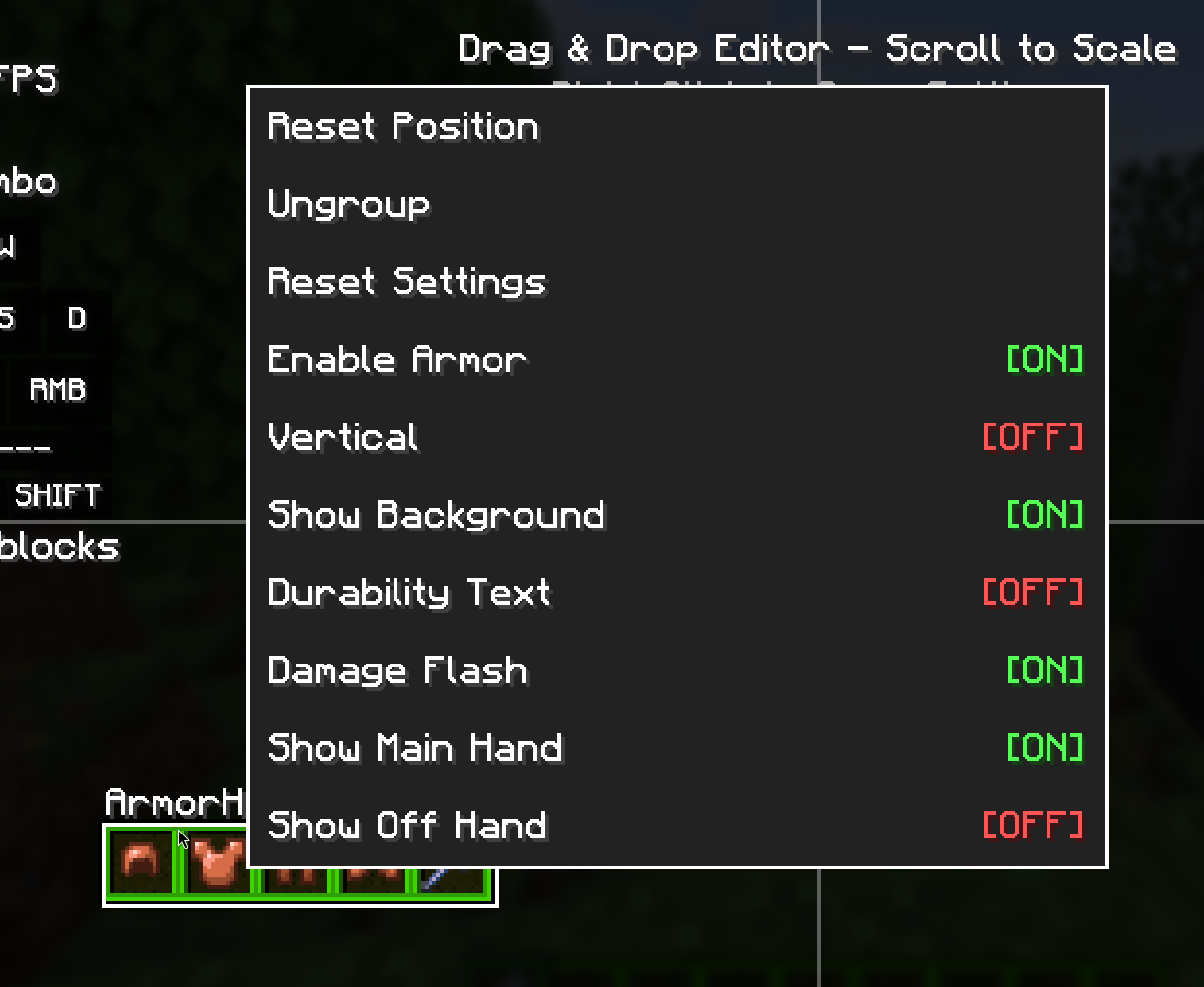
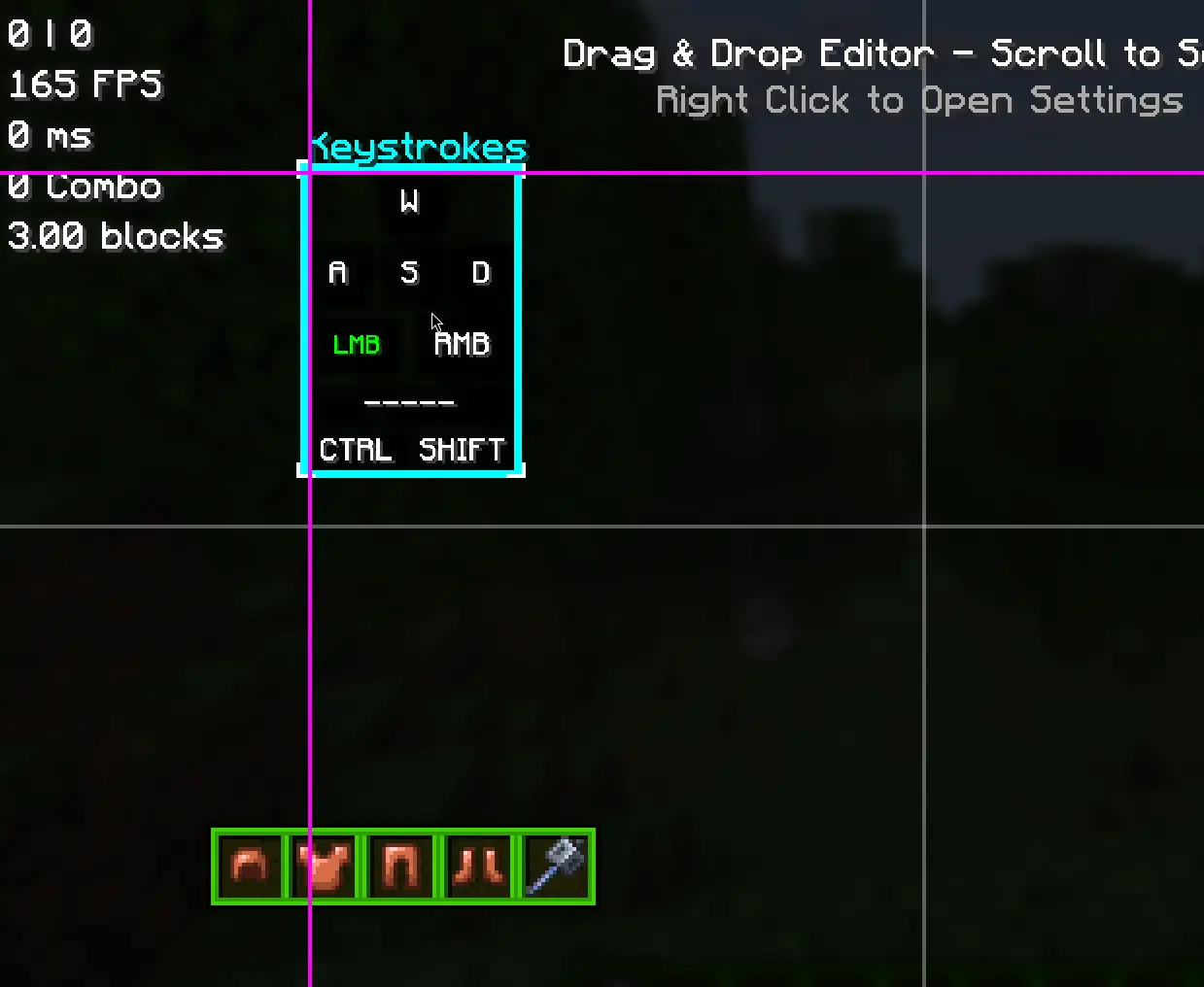
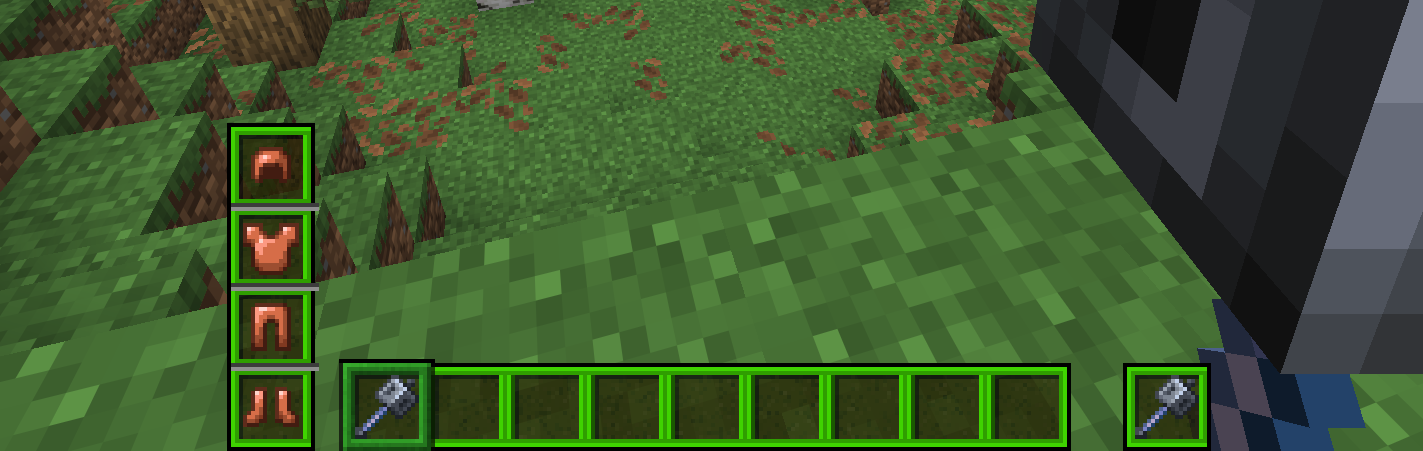
Now you can completely ungroup the armor hud, and place the elements separately anywhere you want.
Also, as you can see on the images, Armor HUD now supports different texture packs. (The texture pack on the image is created by Pyxell, [check here](https://www.planetminecraft.com/texture-pack/green-gui-6417637/))
You can choose multiple elements at once now. Like using a computer.
HUD Editor Screen now supports magnet snapping, which is included in the Keystrokes Designer Screen since v1.0.8.
## API
There are many changes with API. [See the changes here.](https://eymistaken.github.io/Eymistaken-s-HUD-Website/api-guide.html)
and that's all...
### Added
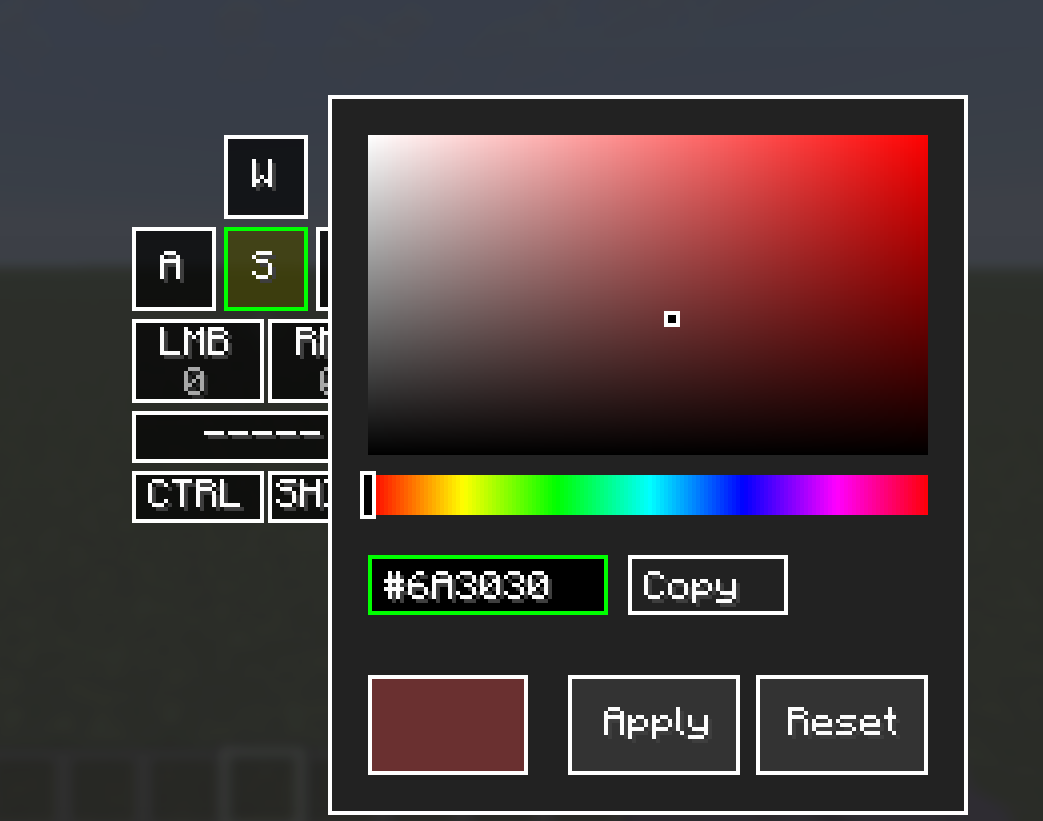
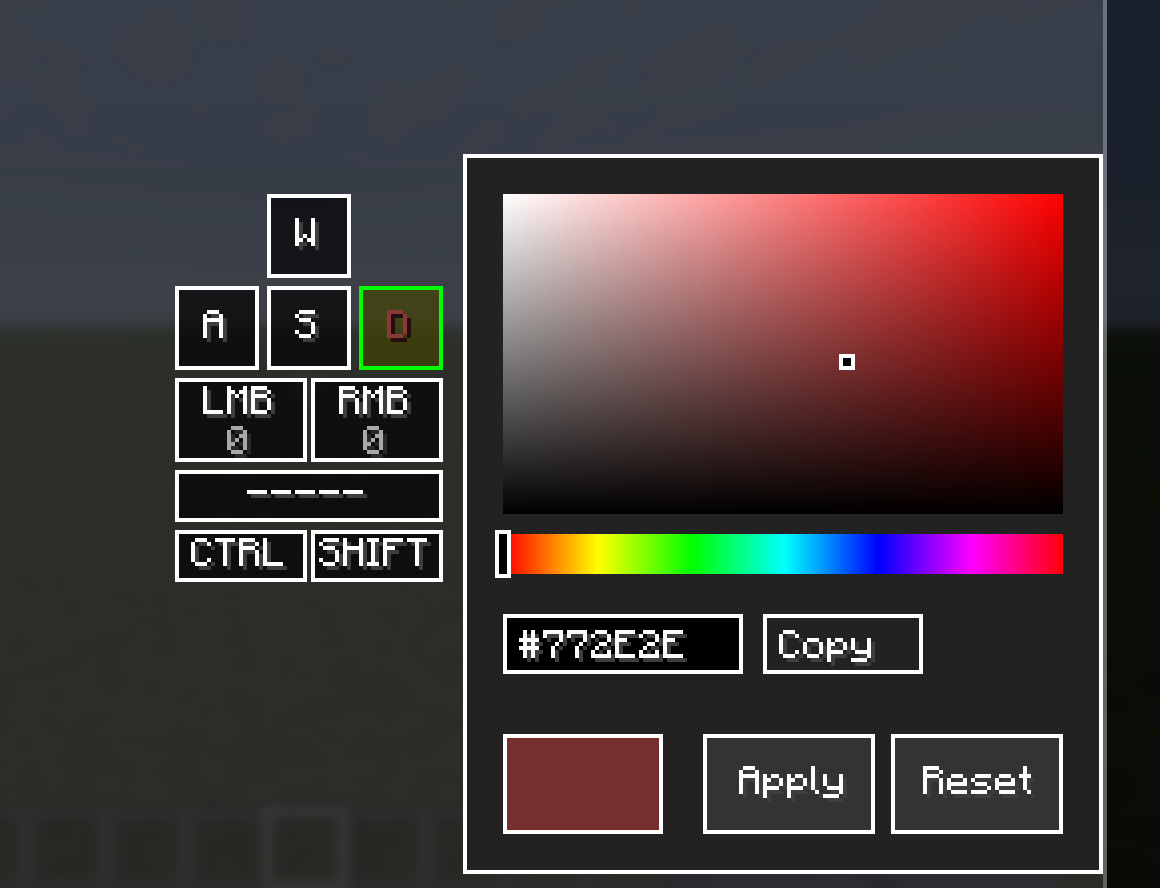
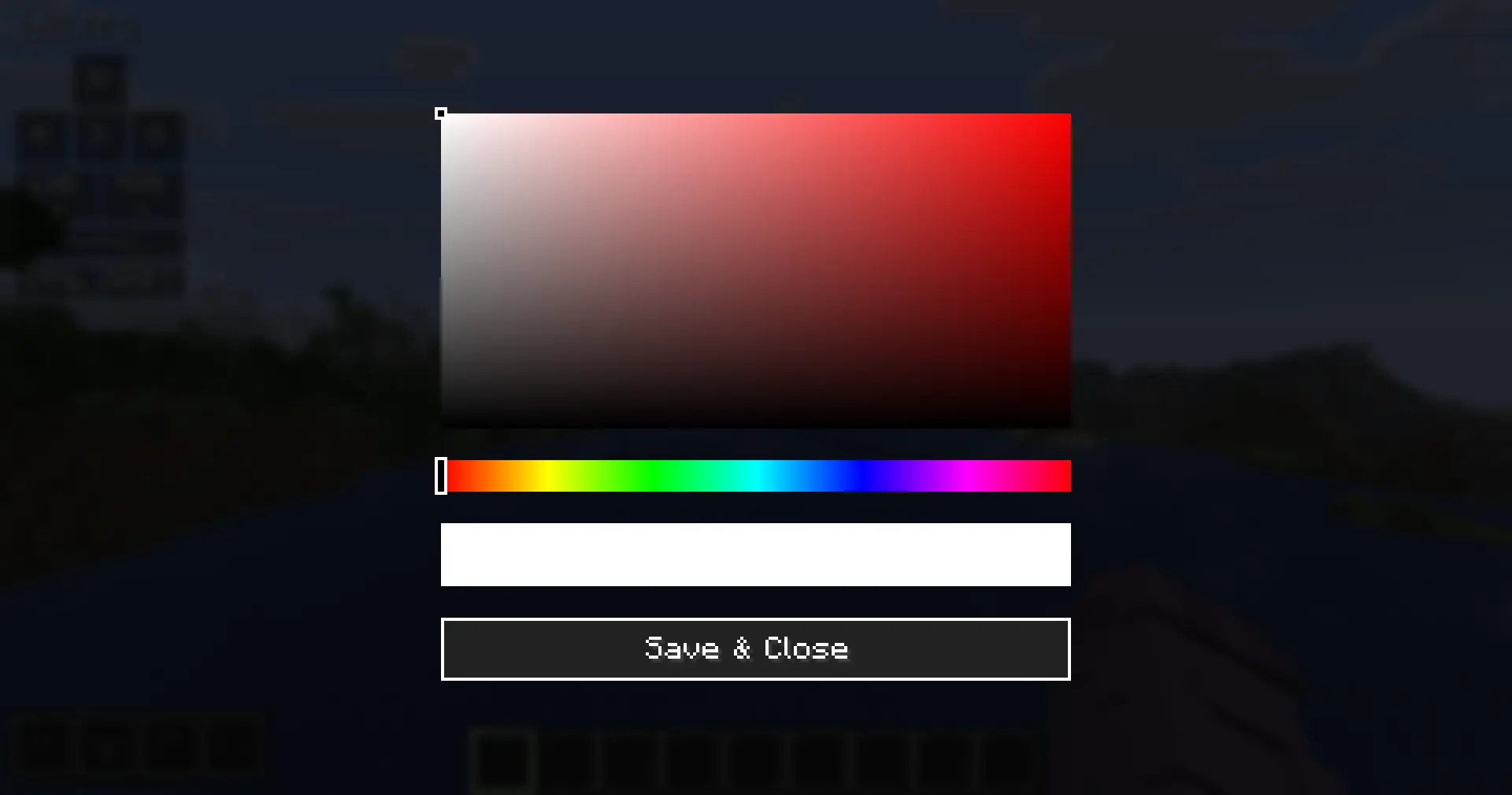
- Hex color code display in Color Picker** — The Color Picker screen now shows the currently selected color as a
#RRGGBBhex code in an editable text box. This allows players to see the exact color value at a glance without leaving the screen. This is particularly useful when working across multiple Color Picker instances — for example, matching text colors between different keys in the Keystrokes Designer.
- Hex input editing** — Clicking the hex box activates it for keyboard input. Valid hex characters are accepted and the color updates live as a complete 6-digit code is entered. Invalid input is silently discarded to prevent visual glitches.
- CTRL+A support in hex box** — Pressing CTRL+A while the hex box is active selects all text, indicated by a blue highlight. The next character typed replaces the entire contents, matching standard text field behavior.
- CTRL+V support in hex box** — Pressing CTRL+V pastes clipboard contents into the hex box. Both
#RRGGBBandRRGGBBformats are accepted. Invalid clipboard content is silently ignored.
- Copy button in Color Picker** — A "Copy" button next to the hex box copies the current color code to the clipboard. The button label temporarily changes to "Copied!" for 2 seconds as visual confirmation.
### API
No breaking changes. No public API classes were modified. Binary compatibility with existing third-party plugins is fully preserved.
### Added
- SliderSetting — new context menu setting type** — The Settings API previously had no way to expose integer/float values through the context menu. A new
SliderSettingtype has been added tocom.eymistaken.simplecps.api, allowing module authors to bind anyintconfig field to a draggable slider bar rendered directly inside the context menu. The slider displays a live value label inside the bar and includes a Reset button that restores the field to a configurable default value.
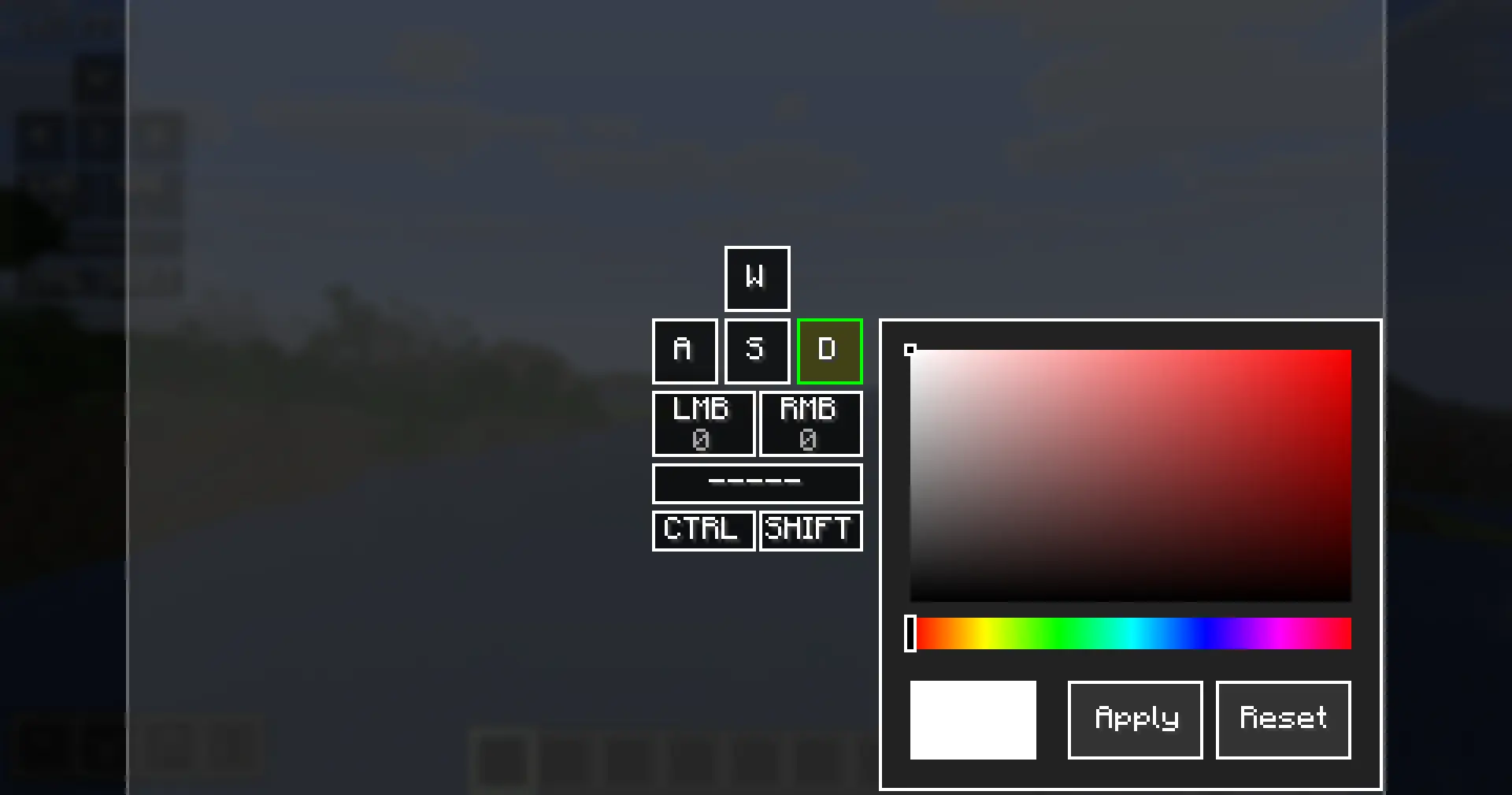
- Per-key pressed color in Keystrokes Designer** — It was only possible to set a per-key normal color via Change Color. A new Change Pressed Color option has been added to the right-click context menu in KeystrokesDesignerScreen. The selected color is stored in a new
btnPressedColorfield onKeyButtonDatawith sentinel value-1(meaning: use global pressed color), and is respected byKeystrokesModuleat render time.
### Fixed
- Slider value not persisting after drag release** — When the user finished dragging a slider in
HudEditorScreen,SimpleCPSConfig.save()was not called onmouseReleased. The config was updated in memory during the drag but never written to disk, so the value was lost on game exit.save()is now called whendraggingSlideris cleared.
- Keystrokes Designer not reflecting per-key color** — Button labels in
KeystrokesDesignerScreenwere always drawn in0xFFFFFFFFregardless of a button'sbtnColorvalue. The render path now checksbtnColorand applies it when set, matching the in-game rendering behavior ofKeystrokesModule.
- Color picker opening in wrong color for pressed color** — When opening Change Pressed Color from the Designer context menu, the picker always initialized to black. The root cause was Gson deserializing missing
btnPressedColorfields as0rather than-1, causing the== -1fallback to the global pressed color to be skipped. The initialization guard now treats any value<= 0as unset.
### API
> For full API documentation and usage examples, see the [API Guide](https://eymistaken.github.io/Eymistaken-s-HUD-Website/api-guide.html).
SliderSetting has been added as a new public class to com.eymistaken.simplecps.api. This is an additive API change — no existing interfaces, abstract methods, or method signatures were modified. All existing HudModule implementations and getContextMenuSettings() overrides remain fully binary-compatible without recompilation. The new btnPressedColor field on KeyButtonData uses @SerializedName and defaults to -1, so existing config files deserialize without issue.## [1.0.9-7]
### Added
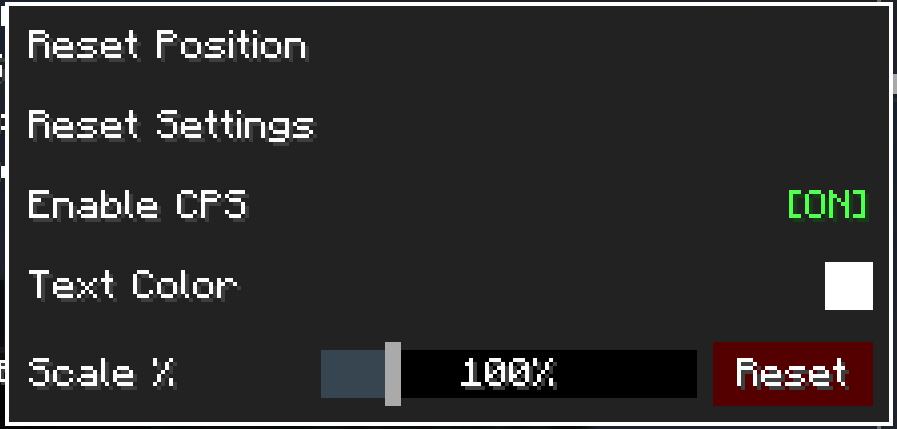
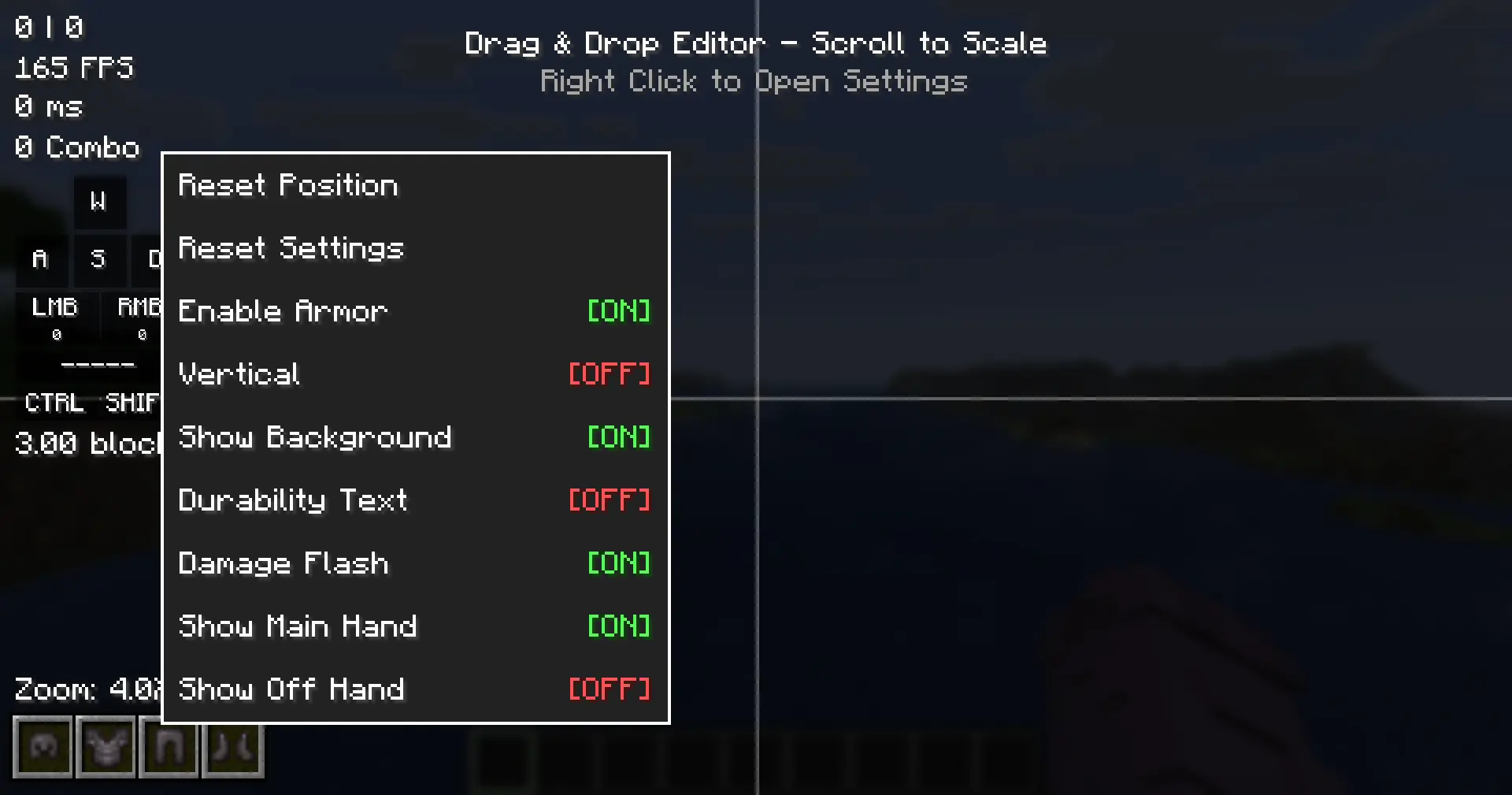
- HUD Editor Context Menu**: Right-clicking a module in the HUD Editor now opens a context menu with quick settings, replacing the previous behavior of immediately resetting the module position.
- HudModuleSetting API**: New API infrastructure for declaring per-module context menu settings. Supports five setting types:
ColorSetting,BooleanSetting,TextSetting,ActionSetting, andCycleSetting. - Context menu settings for all modules**: CPS, FPS, Ping, Combo, Reach, Armor HUD, and Keystrokes modules now declare their most important settings via
getContextMenuSettings(). - ColorSetting integration**: Clicking a color setting in the context menu opens the inline
ColorPickerScreendirectly. - TextSetting integration**: Clicking a text setting opens an inline input field at the bottom of the HUD Editor screen.
- Reset Settings action**: All modules now have a "Reset Settings" button in their context menu that resets all visual and behavioral config fields to their defaults, without touching position, offsets, or scale.
- Reset Position action**: All modules have a "Reset Position" button that resets position, offsets, and scale only.
- Always Show setting**: Combo and Reach modules now expose an "Always Show" toggle in their context menus, controlling visibility when inactive.
- Open Designer shortcut**: Keystrokes module context menu now includes an "Open Designer" action for direct access to the Keystrokes Designer screen.
- Armor HUD context menu settings**: Show Armor, Vertical, Show Background, Durability Text, Damage Flash, Show Main Hand, Show Off Hand.
- Inline color picker reset button**: The inline color picker in the Keystrokes Designer now includes a "Reset" button that clears the per-key color override back to the global color.
### Changed
- Reset Settings behavior**: No longer changes the enabled/disabled state of a module. Scale is now included in the reset alongside other visual defaults.
- Context menu label standardization**: All module enable/disable toggles now follow the "Enable [ModuleName]" naming convention (e.g., "Enable CPS", "Enable Combo").
- Keystrokes context menu**: Removed the "Reset Settings" button from the Keystrokes module context menu, as layout reset is already handled by the "Reset Layout" button inside the Keystrokes Designer.
### API
> For full API documentation and usage examples, see the [API Guide](https://eymistaken.github.io/Eymistaken-s-HUD-Website/api-guide.html).
HudModuleSettingabstract class added tocom.eymistaken.simplecps.api.ColorSetting,BooleanSetting,TextSetting,ActionSetting,CycleSettingconcrete setting classes added tocom.eymistaken.simplecps.api.HudModule.getContextMenuSettings()now returns a default list containing "Reset Settings" and "Reset Position" actions. External modules can override this method to declare their own settings.HudModule.resetVisualDefaults()added as an overridable method for resetting non-layout config fields.
## [1.0.9-6] - [HOTFIX]
### Fixed
- Keystrokes CPS display showing incorrect values when CPS module is disabled** — The
tick()method inCpsModulecontained an early return guard gated onisEnabled(). This caused theleftClicksandrightClickslists to stop being pruned when the module was disabled, whileMixinMousecontinued to populate them unconditionally. As a result, the Keystrokes module's per-button CPS counter read from a list that grew indefinitely. The early return has been removed so the lists are always pruned on every tick regardless of module visibility.
- Combo not resetting on damage** —
MixinLivingEntitywas injecting into thedamage(ServerWorld, DamageSource, float)method, which is server-side and never invoked in a client-side mod context. Consequently,ComboTracker.onDamage()was never called and the combo counter did not reset when the player took a hit. The fix replaces the mixin-based approach with ahurtTimepoll insideComboTracker.onTick(). AlastHurtTimefield is compared againstclient.player.hurtTimeeach tick; when a transition from 0 to a positive value is detected,onDamage()is triggered directly.
### API
No breaking changes. The public surface of
HudModule, EymistakenHudPlugin, and HudModuleManager is unchanged. Existing plugins remain binary-compatible and do not require recompilation.### Fixed
- Config not saving on exit** — The
save()method usedATOMIC_MOVEexclusively when writing the config file. On certain systems and file system configurations (notably Windows when the temp file and config directory reside on different volumes), this operation throwsAtomicMoveNotSupportedException. Because this exception is a subclass ofIOException, it was silently caught and the file move was never completed, causing all changes to be lost on exit. The method now falls back to a standardREPLACE_EXISTINGmove when atomic move is not supported.
### Added
- Undo / Redo in Keystrokes Designer** —
Ctrl+ZandCtrl+Ynow correctly trigger the undo and redo operations inside the Keystrokes Designer screen. The snapshot stack was already being populated on every edit action; the key handlers to consume it were missing and have been added.
### API
No breaking changes. This release does not modify any public API surface (
HudModule, EymistakenHudPlugin, HudModuleManager). Existing plugins remain binary-compatible and do not require recompilation.### Overview
This is a major under-the-hood optimization update focused entirely on improving client performance and system stability. While there are no new visual features in this release, the internal input handling and rendering systems have been completely refactored to eliminate frame drops and reduce overall system overhead.
### System & Performance Changes
- Event-Driven Input Architecture:** Completely removed legacy GLFW polling (
glfwGetKey,glfwGetMouseButton) from all render loops. Input tracking for modules (such as CPS and Keystrokes) is now fully event-driven via Mixins, ensuring O(1) time complexity and preventing input-related micro-stutters. - Render Pipeline Optimization:** Separated logical data updates from the rendering pipeline. Data cleanups and state updates are now properly handled during client ticks and hardware events rather than per-frame.
- Memory Leak Prevention:** Refactored target tracking in the Combo module to prevent holding direct
Entityinstances in memory. This allows the Java Garbage Collector to properly clear removed or dead entities. - Atomic Configuration Saving:** Implemented an atomic write process for configuration files. Settings are now written to a temporary file before replacing the main configuration, preventing JSON corruption if the client crashes during a save operation.
- Reach Calculation Accuracy:** Addressed an issue in the Reach module's distance measuring logic to provide more accurate combat metrics.
### API & Developer Changes
- 1.21.11 Mapping Compliance:** Updated GUI designer screen method signatures to fully comply with the latest 1.21.11 Yarn mappings (utilizing
Click,KeyInput, andCharInputrecords). - API Stability:** The core
HudModuleandEymistakenHudPluginAPI structures remain completely unchanged. All existing third-party addons will continue to function normally without requiring any updates.
### Overview
This is a minor under-the-hood update focused entirely on expanding and improving the Developer API. There are no user-facing visual or functional changes in this release; the general gameplay experience remains exactly the same.
### API & Developer Changes
- Modular HUD Editor:** The in-game HUD Editor has been completely refactored. It is no longer hardcoded to core modules and now dynamically supports any third-party addon.
- Drag & Drop Addon Support:** Custom modules registered via the
EymistakenHudPluginAPI can now be dragged, repositioned, scaled, and reset directly within the in-game HUD Editor. - New API Methods:** Added optional setter methods (
setXOffset,setYOffset,setPositionType,setScale,resetToDefaults) to theHudModuleclass. This allows addon developers to receive live coordinate updates from the HUD Editor and save them directly to their own independent configuration files.
For updated documentation and implementation examples, please [click here for more information](https://eymistakenshud.netlify.app/api-guide).
- Fixes:**
- Reach Module Restored:** Addressed an unintended issue from the v1.0.9 release where the Reach module temporarily disappeared. The module has been quickly restored and is now fully visible and functioning as expected.
- Updating to this patch is highly recommended.*
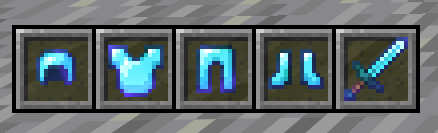
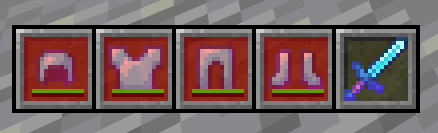
This update introduces a highly requested feature for PvP enthusiasts: a fully dynamic and customizable Armor HUD. Track your gear's health in real-time without taking your eyes off the battle.
### New Features
#### Dynamic Armor HUD
A comprehensive display for your equipped armor and held items, built with combat awareness in mind.
- Damage Flash System:** Items will flash red momentarily upon taking damage, providing critical visual feedback during intense fights.
- Precise Durability Tracking:** Displays exact durability numbers with dynamic color coding. Colors automatically shift from Green (>50%) to Yellow (>20%) to Red (<20%) based on item health.
- Smart Hand Detection:** Automatically adapts to your Main Arm setting (Right/Left-handed), rendering your Main-hand and Off-hand items in the correct, intuitive order.
- Customizable Rendering:** Choose between vertical or horizontal orientations, toggle translucent background slots, and position the module anywhere on your screen.
### Improvements & Fixes
- Config Expansion:** Added a dedicated "Armor HUD" tab in the Cloth Config menu for seamless customization.
- Asset Optimization:** Integrated custom high-quality textures for HUD background slots.
> **⚠️ CONFIGURATION UPDATE:**
> New variables have been added to the configuration structure for the Armor HUD. If you experience any visual glitches or missing settings, please delete your old
simplecps.json file to allow the mod to generate a fresh one (Do it if your mod is older than v1.0.8).This major release transforms Eymistaken's HUD into a fully customizable suite, introducing the new In-Game Layout Designer and dynamic combat visuals.
### New Features
#### In-Game Layout Designer
Eliminated fixed layouts in favor of a complete drag-and-drop editor.
- Full Customization:** Create Keystrokes modules from scratch. Add, remove, resize, and relabel keys (WASD, Space, Mouse Buttons) directly in-game.
- Context Menu:** Right-click any element to adjust its specific properties.
- Undo/Redo Support:** Includes full state management (Ctrl+Z / Ctrl+Y) for a seamless design experience.
- Access:* Enabled via Config -> Keystrokes -> "Make Your Own".
#### Combo Heatmap Mode
- Dynamic Visuals:** Text color shifts dynamically (Base -> Red -> Dark Red) based on combo intensity.
- Screen Shake:** Implemented visual impact effects that trigger during high combo streaks (60+).
#### Customizable CPS Display
- Added support for custom prefixes, suffixes, and separators for Left/Right click counters via the configuration menu.
### Improvements & Fixes
- Pixel-Perfect Rendering:** Adjusted default button dimensions to odd integers (e.g., 21px) to ensure perfect text centering and crisp font rendering.
- Performance Refactor:** Migrated input handling to event listeners for optimized response times.
- UI Polish:** General cleanup of the configuration screen and removal of legacy beta tags.
> **⚠️ CONFIGURATION RESET REQUIRED:**
> Due to significant structural changes in this update, you **must delete** your old
simplecps.json config file.> *If you cannot delete the file, please use the "Reset All Settings" button in the Layout tab to prevent potential layout conflicts.*
removed standalone.
This update introduces the **Reach Display** module, providing real-time feedback on combat reach distance with high precision.
### New Feature: Reach Display
- Hit Distance Tracking:** Displays the exact distance of the last successful hit in blocks (e.g.,
3.00 blocks) with decimal precision. - Raycast Accuracy:** Utilizes crosshair target logic to ensure measurement precision aligns with actual gameplay mechanics.
- Visual Customization:** Full support for rainbow mode, custom colors, scaling, and background opacity.
- Smart Filtering:** Includes an option to display reach only when hitting players, ignoring interactions with mobs.
- Auto-Hide:** Automatically clears the display after a configurable timeout period to keep the HUD clean.
### Technical Changes
- Implemented
ReachTrackerlogic for combat event handling. - Integrated Reach settings into the Cloth Config factory.
- Resolved minor rendering offset issues in the HUD.
> **⚠️ CONFIGURATION NOTICE:**
> The **Reach Display** settings are currently accessible **exclusively via the Cloth Config** menu (requires Mod Menu).
> *Support for the standalone internal configuration menu will be implemented in a future update.*
This is the biggest update for Eymistaken's HUD yet! We have completely rewritten the core architecture to introduce a **"Hybrid System"**.
## 🚀 What's New in v1.0.6?
### 1. The "Zero Dependency" Revolution (Standalone Mode)
We heard you! You wanted maximum FPS and minimum clutter.
- Fabric API is now OPTIONAL:** The mod now runs purely on custom Mixins.
- Cloth Config is now OPTIONAL:** If you don't install it, the mod falls back to a super-fast, vanilla-style settings screen.
- Result:** Blazing fast startup and zero bloat for competitive players.
### 2. Visual Drag & Drop Editor (Modern Mode) 🖱️
For those who love customization, we added a highly requested feature.
- Requirement:** Install **Cloth Config** to unlock this feature.
- Drag & Drop:** Click "Edit HUD Positions" to drag modules anywhere on your screen.
- Scroll-to-Scale:** Hover over any module (CPS, FPS, Combo) and use your **Mouse Wheel** to resize it instantly!
- Smart Alignment:** Center guidelines help you keep your HUD perfect.
### 3. Fixes & Improvements
- Fixed:** Resolved the "Double Blur" crash on newer 1.21 rendering engines.
- Improved:** Combo Counter visibility logic in the editor.
## 📥 How to Update?
Since this is a hybrid mod, your installation depends on what you want:
| I want... | Install Fabric API? | Install Cloth Config? |
| :--- | :---: | :---: |
| **Max FPS (Standalone)** | ❌ No | ❌ No |
| **Visual Editor (Modern)** | Optional | **✅ Yes** |
_(But of course, we absolutely recommend to use with Cloth Config API and Mod Menu. Important: If you have installed Cloth Config API, you HAVE TO install Mod Menu to customize it. Otherwise, you can't find a button to customize it.)_
- Enjoy the update!*
SimpleCPS is now smarter than ever! With the new **Combat Mode Switch**, the mod adapts to your playstyle, whether you are a 1.8 spam-clicker or a 1.9+ timing master.
### ✨ New Feature: Combat Modes
- 🛡️ Modern Mode (1.9+ Default):** The Combo Counter respects attack cooldowns!
- Spamming weak hits **will not** increase your combo count.
- The counter "freezes" until you land a fully charged hit.
- Perfect for tracking *actual* critical hits.
- ⚔️ Classic Mode (1.8):** Old school style. Every hit counts, regardless of cooldown.
### 🚀 Combo Counter (Beta)
- Player-Only:** Tracks hits on players only (mobs ignored).
- Smart Stacking:** HUD elements automatically stack vertically without overlapping.
- Customizable:** Rainbow mode, scale, opacity, and "Target Switch" logic (keep combo when switching players!).
### 🐛 Technical
- Updated for **Minecraft 1.21.11 (Mounts of Mayhem)**.
- Added
CombatModesetting in the config menu.
- Choose your style: Classic spam or Modern precision? Happy PvPing!*


